
Introduction
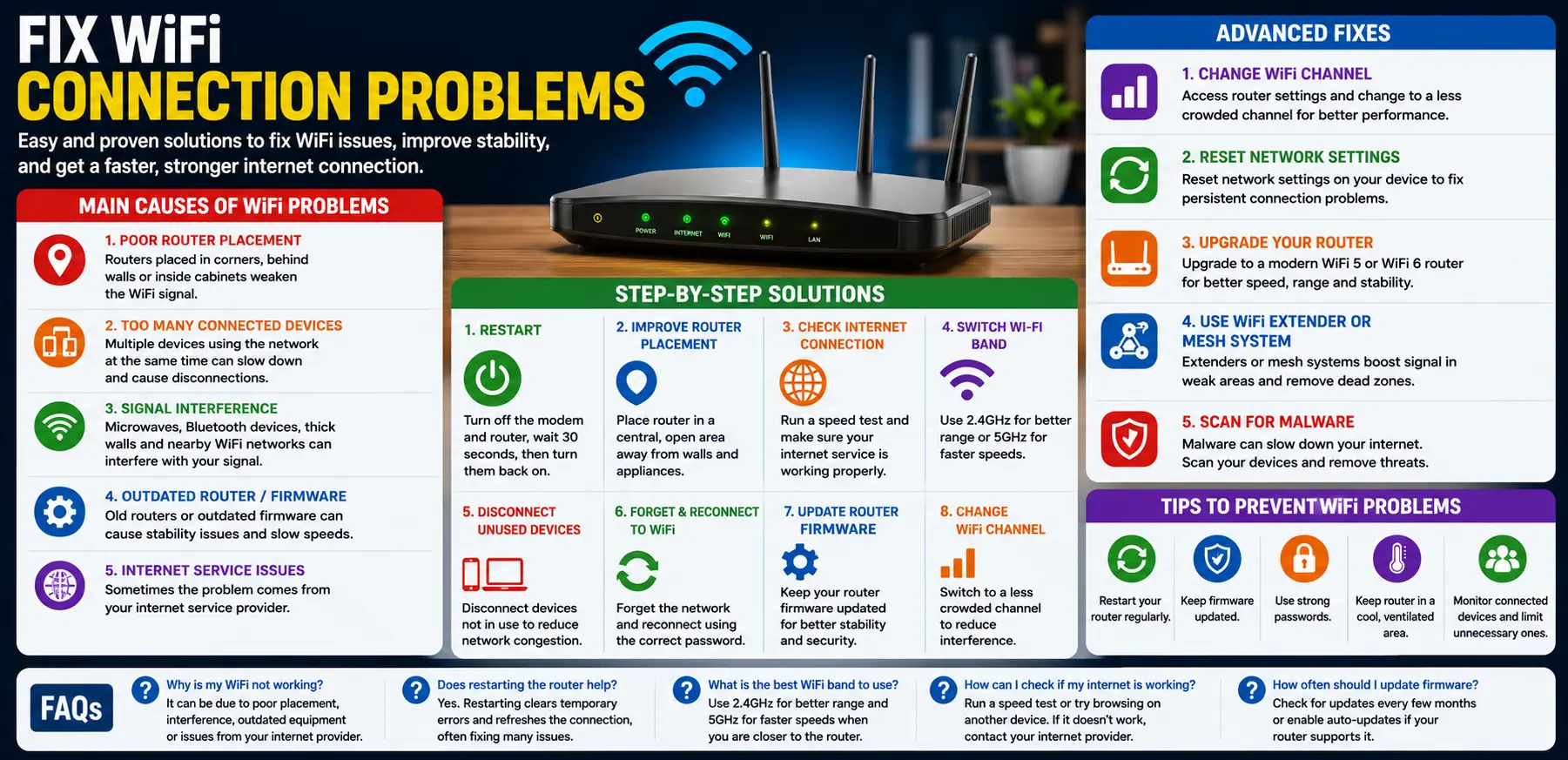
WiFi connection problems can quickly become frustrating, especially when you rely on the internet for work, online classes, gaming, streaming, or communication. A weak or unstable connection can cause websites to load slowly, video calls to freeze, and downloads to fail unexpectedly.
FOR MORE SOLUTIONS VISITS
Many people assume internet problems always come from their service provider, but WiFi issues are often caused by local problems inside the home or office. Router placement, outdated equipment, signal interference, and incorrect settings are some of the most common reasons behind unstable WiFi connections.
The good news is that most WiFi problems can be fixed without technical expertise or expensive upgrades. A few simple troubleshooting steps can often restore speed, improve stability, and reduce random disconnections.
This guide explains practical ways to fix WiFi connection problems using beginner-friendly methods that actually work.
Main Causes of WiFi Connection Problems
1. Poor Router Placement
Router location has a major impact on signal quality. If the router is hidden behind walls, placed inside cabinets, or located far from devices, the WiFi signal may become weak.
WiFi signals perform best in open and central areas.
2. Too Many Connected Devices
Modern households often connect many devices to WiFi at the same time, including:
- Smartphones
- Laptops
- Smart TVs
- Gaming consoles
- Security cameras
Too many active devices can overload the network and cause slow or unstable connections.
3. Signal Interference
WiFi signals can be disrupted by:
- Microwaves
- Bluetooth devices
- Thick walls
- Neighboring WiFi networks
Interference weakens signal strength and may cause frequent disconnections.
4. Outdated Router or Firmware
Older routers may struggle to handle modern internet demands efficiently.
Outdated firmware can also lead to:
- Connection drops
- Slow performance
- Security problems
5. Internet Service Problems
Sometimes the issue comes from the internet provider itself.
Temporary outages, maintenance work, or network congestion can affect internet stability.
Step-by-Step Solutions
Restart the Router and Modem
Restarting networking equipment is one of the easiest and most effective troubleshooting methods.
Steps:
- Turn off the modem and router
- Wait 30 seconds
- Turn the modem back on
- Wait until all connection lights stabilize
- Turn on the router
This refreshes the network connection and clears temporary errors.
Move the Router to a Better Location
Router placement can significantly improve WiFi stability.
Best Router Placement Tips:
- Place the router in a central location
- Keep it elevated
- Avoid placing it near metal objects
- Keep it away from thick walls and appliances
Open areas usually provide better signal coverage.
Check Your Internet Connection
Sometimes the WiFi network works properly, but the internet itself is down.
Try:
- Running a speed test
- Checking other devices
- Restarting the modem
If the issue continues, contact your internet provider.
Switch Between 2.4GHz and 5GHz
Most modern routers support two WiFi bands.
2.4GHz
- Better range
- More stable through walls
- Slower speeds
5GHz
- Faster speeds
- Shorter range
- Better for streaming and gaming
Switching bands may improve connection quality depending on your location.
Disconnect Unused Devices
Too many connected devices may slow down the network.
Disconnect:
- Idle smart devices
- Unused phones
- Extra tablets
- Devices not currently in use
This reduces network congestion.
Forget and Reconnect to WiFi
Sometimes saved network settings become corrupted.
On Smartphones or Computers:
- Open WiFi settings
- Select the network
- Choose “Forget Network”
- Reconnect using the password
This often fixes authentication or connection errors.
Update Router Firmware
Router manufacturers release firmware updates to improve:
- Stability
- Security
- Performance
Check your router settings page regularly for updates.
Advanced Fixes
Change WiFi Channel
Nearby networks may use the same WiFi channel, causing interference.
Changing channels can improve:
- Signal stability
- Connection speed
- Overall performance
Most routers allow channel changes through the admin settings page.
Reset Network Settings
Network settings sometimes become corrupted on devices.
On Android:
- Open Settings
- Go to System
- Select Reset Options
- Tap Reset WiFi, Mobile & Bluetooth
On iPhone:
- Open Settings
- Tap General
- Select Transfer or Reset iPhone
- Tap Reset Network Settings
This can solve persistent connection problems.
Upgrade Your Router
Older routers may not support modern WiFi standards efficiently.
Upgrading to:
- WiFi 5
- WiFi 6
routers can improve:
- Speed
- Coverage
- Device handling
- Stability
This is especially helpful for larger households.
Use a WiFi Extender or Mesh System
Large homes may have weak signal areas known as dead zones.
WiFi Extenders
Boost coverage in weak areas.
Mesh Systems
Provide more stable and seamless coverage throughout the house.
Mesh systems are often better for multi-floor homes.
Scan Devices for Malware
Malware or infected devices can secretly consume bandwidth and create network instability.
Use trusted antivirus software to scan:
- Computers
- Smartphones
- Tablets
Removing harmful software may improve network performance.
Tips to Prevent Future WiFi Problems
Restart Your Router Occasionally
Restarting the router every few weeks helps maintain stable performance and refreshes the connection.
Keep Firmware Updated
Firmware updates improve:
- Performance
- Security
- Compatibility
Enable automatic updates if available.
Secure Your WiFi Network
Use:
- Strong passwords
- WPA2 or WPA3 encryption
Unsecured networks may allow unauthorized users to consume bandwidth.
Avoid Router Overheating
Routers may perform poorly when overheated.
Keep the router:
- In a cool area
- Well ventilated
- Away from direct sunlight
Monitor Connected Devices
Check your network regularly to see how many devices are connected.
Too many active devices can slow down WiFi and reduce stability.
FAQs
Why does my WiFi keep disconnecting?
Frequent disconnections may happen because of signal interference, outdated routers, weak signals, or network congestion.
Does restarting the router fix WiFi problems?
Yes. Restarting refreshes the network connection and often resolves temporary issues.
What is the difference between 2.4GHz and 5GHz WiFi?
2.4GHz offers better range, while 5GHz provides faster speeds over shorter distances.
Can walls weaken WiFi signals?
Yes. Thick walls, metal objects, and large furniture can reduce signal strength significantly.
How often should I replace my router?
Most routers work well for around 4–5 years before newer technology provides noticeable improvements.
Conclusion
WiFi connection problems can interrupt work, entertainment, gaming, and communication, but most issues can be solved with simple troubleshooting methods. Restarting the router, improving router placement, reducing interference, and updating firmware can greatly improve connection quality.
Advanced solutions like upgrading routers, using mesh systems, and changing network settings can provide even better stability for larger homes and heavy internet users.
By following these tips to fix WiFi connection problems, you can enjoy a faster, more stable, and more reliable internet experience every day.
- AI Powered Cyber Defense How Artificial Intelligence Strengthens Modern Cybersecurity
- Machine Learning in Cybersecurity How Intelligent Systems Help Detect and Prevent Cyber Threats
- AI in Cybersecurity How Artificial Intelligence Is Transforming Digital Security
- AI Threat Detection How Artificial Intelligence Helps Stop Cyber Threats Before They Cause Damage
- Artificial Intelligence Security Solutions A Practical Guide to Smarter Cyber Protection
