
Introduction
Windows startup issues can be one of the most frustrating problems a computer user faces. You press the power button expecting your PC to load normally, but instead you encounter a black screen, endless loading animation, automatic repair loops, error messages, or a system that refuses to boot altogether.
FOR MORE SOLUTIONS VISIT
A computer that won’t start properly can interrupt work, online classes, gaming, business operations, and access to important files. While startup problems may seem serious, many of them are caused by software glitches, corrupted system files, recent updates, or hardware-related issues that can often be fixed without replacing the computer.
Understanding the causes of Windows startup issues and knowing the right troubleshooting steps can save time, money, and frustration. This guide covers common causes, practical solutions, advanced repair methods, and tips to prevent startup problems in the future.
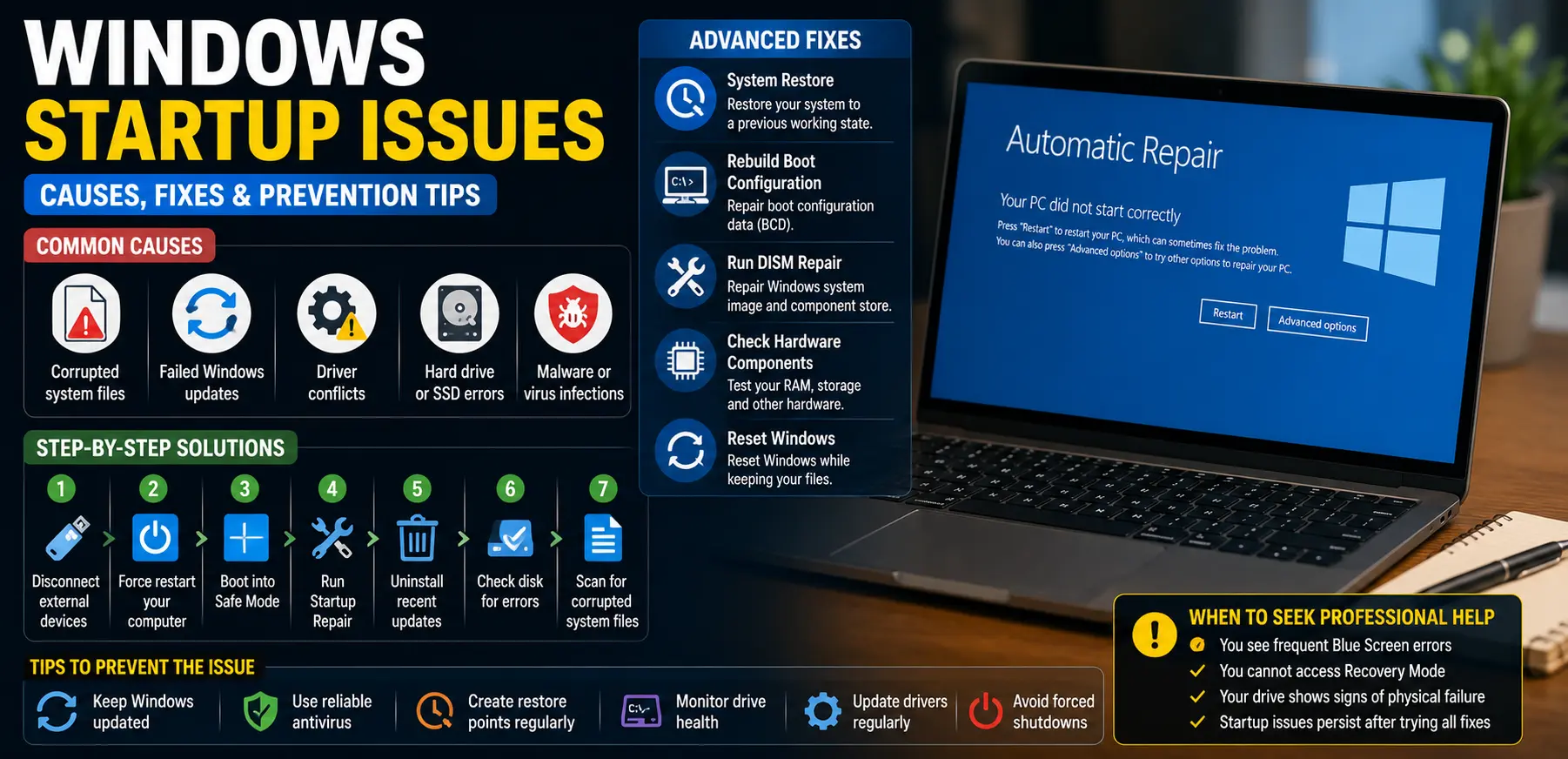
Main Causes of Windows Startup Issues
1. Corrupted System Files
Windows depends on hundreds of critical system files during startup. If some of these files become damaged due to malware, unexpected shutdowns, failed updates, or software conflicts, Windows may fail to load correctly.
Corrupted files often result in boot errors, blue screens, or automatic repair loops.
2. Failed Windows Updates
While updates are important for security and stability, an interrupted or unsuccessful update can sometimes create startup problems.
Power outages, storage issues, or installation errors during updates may prevent Windows from booting properly after restarting.
3. Driver Conflicts
Device drivers allow Windows to communicate with hardware components such as graphics cards, storage devices, and network adapters.
An incompatible or corrupted driver can cause startup crashes, blue screens, or freezing during boot.
4. Hard Drive or SSD Problems
Storage devices can develop errors over time. Bad sectors, file system corruption, or hardware failure may prevent Windows from accessing essential startup files.
If the drive is failing, startup issues may become more frequent and severe.
5. Malware or Virus Infections
Malicious software can modify important Windows files and settings. Some malware specifically targets startup processes, causing slow boot times, crashes, or complete startup failure.
Keeping your system protected is essential for preventing these problems.
Step-by-Step Solutions
Step 1: Disconnect External Devices
External hardware can occasionally interfere with startup.
Disconnect:
- USB drives
- External hard drives
- Printers
- Webcams
- Memory card readers
After disconnecting these devices, restart your computer and check whether Windows loads normally.
Step 2: Force Restart the Computer
Temporary system glitches can sometimes prevent Windows from booting correctly.
To perform a force restart:
- Hold the Power button for about 10 seconds.
- Wait until the computer turns off.
- Press the Power button again.
- Allow Windows to attempt a normal startup.
This simple step often resolves temporary startup issues.
Step 3: Boot into Safe Mode
Safe Mode starts Windows with only essential drivers and services.
To enter Safe Mode:
- Turn the computer on.
- Interrupt the startup process three times by holding the Power button.
- Windows should enter Recovery Mode.
- Select Troubleshoot.
- Choose Advanced Options.
- Click Startup Settings.
- Restart and select Safe Mode.
If Windows starts successfully in Safe Mode, a driver, update, or third-party application may be causing the problem.
Step 4: Run Startup Repair
Windows includes a built-in Startup Repair tool.
To access it:
- Enter Windows Recovery Environment.
- Select Troubleshoot.
- Click Advanced Options.
- Choose Startup Repair.
- Select your Windows installation.
The tool will automatically scan and repair common startup problems.
Step 5: Uninstall Recent Updates
If startup issues began after a Windows update:
- Enter Recovery Mode.
- Open Advanced Options.
- Select Uninstall Updates.
- Remove the latest quality or feature update.
- Restart the computer.
This can reverse update-related startup problems.
Step 6: Check Disk for Errors
Storage errors can prevent successful booting.
Open Command Prompt from Recovery Mode and run:
chkdsk C: /f /r
This command scans the drive for errors and attempts repairs.
Depending on drive size, the process may take some time.
Step 7: Scan for Corrupted System Files
Corrupted Windows files are a common cause of startup issues.
Open Command Prompt and run:
sfc /scannow
This tool checks system files and replaces damaged versions automatically.
Advanced Fixes
Use System Restore
System Restore allows you to return Windows to a previous working state.
To use it:
- Enter Recovery Mode.
- Select Troubleshoot.
- Click Advanced Options.
- Choose System Restore.
- Select a restore point created before the startup issue began.
This can reverse problematic changes without affecting personal files.
Rebuild Boot Configuration Data (BCD)
The Boot Configuration Data controls how Windows starts.
If it becomes corrupted, startup may fail.
From Command Prompt in Recovery Mode, run:
bootrec /fixmbr
bootrec /fixboot
bootrec /scanos
bootrec /rebuildbcd
These commands repair essential boot information.
Run DISM Repair
The Deployment Image Servicing and Management tool can repair Windows system images.
Run:
DISM /Online /Cleanup-Image /RestoreHealth
After completion, restart the computer and test startup again.
Check Hardware Components
Persistent startup problems may indicate hardware issues.
Inspect:
- SSD or hard drive health
- RAM modules
- Motherboard connections
- Power supply stability
Many manufacturers provide diagnostic tools for testing hardware health.
Reset Windows
If other solutions fail, Windows can be reset while keeping personal files.
To do this:
- Enter Recovery Mode.
- Select Troubleshoot.
- Choose Reset This PC.
- Select Keep My Files.
Windows will reinstall system files while preserving personal data.
Tips to Prevent the Issue
Keep Windows Updated
Regular updates include bug fixes and security improvements that help maintain startup stability.
Install updates from trusted sources and avoid interrupting installations.
Create Restore Points Regularly
System Restore can be extremely valuable when troubleshooting startup issues.
Create restore points before major software installations or system changes.
Use Reliable Antivirus Software
Strong security protection reduces the risk of malware damaging startup files.
Keep antivirus definitions updated regularly.
Avoid Forced Shutdowns
Turning off a computer while Windows is updating or saving data can corrupt important system files.
Always use the normal shutdown process whenever possible.
Monitor Storage Drive Health
Storage devices can wear out over time.
Regularly check drive health using Windows tools or manufacturer utilities to identify problems before they cause startup failures.
Keep Drivers Updated
Updated drivers improve compatibility and reduce the risk of startup conflicts.
Download drivers directly from hardware manufacturers when possible.
FAQs
Why is my computer stuck on the Windows loading screen?
This may be caused by corrupted system files, failed updates, driver conflicts, or storage device errors. Startup Repair and Safe Mode are good places to begin troubleshooting.
Can a Windows update cause startup issues?
Yes. Although updates are designed to improve stability, interrupted or failed installations can occasionally create startup problems.
What is Safe Mode and why is it useful?
Safe Mode starts Windows with minimal drivers and services. It helps identify whether third-party software or drivers are causing startup issues.
Will Startup Repair delete my files?
No. Startup Repair focuses on fixing boot-related problems and does not remove personal files.
How do I know if my hard drive is failing?
Common signs include slow performance, unusual noises, frequent crashes, file corruption, and repeated startup failures. Running disk diagnostics can help confirm drive health.
Conclusion
Windows startup issues can occur for many reasons, including corrupted system files, failed updates, driver conflicts, malware infections, and storage device problems. While these issues may appear serious, many can be resolved using built-in Windows recovery tools and basic troubleshooting techniques.
Starting with simple solutions such as disconnecting external devices, using Safe Mode, running Startup Repair, and checking for disk errors often resolves the problem quickly. For more complex cases, advanced tools like System Restore, DISM, Boot Configuration Data repair, and Windows Reset provide additional recovery options.
Regular maintenance, software updates, reliable antivirus protection, and healthy storage devices can significantly reduce the risk of future startup problems. By following the solutions and prevention tips in this guide, you can keep your Windows computer running smoothly and recover more easily when startup issues occur.
- AI Powered Cyber Defense How Artificial Intelligence Strengthens Modern Cybersecurity
- Machine Learning in Cybersecurity How Intelligent Systems Help Detect and Prevent Cyber Threats
- AI in Cybersecurity How Artificial Intelligence Is Transforming Digital Security
- AI Threat Detection How Artificial Intelligence Helps Stop Cyber Threats Before They Cause Damage
- Artificial Intelligence Security Solutions A Practical Guide to Smarter Cyber Protection
