
Introduction
Android system updates are important for keeping your smartphone secure, stable, and compatible with the latest apps and features. Manufacturers regularly release updates that improve performance, fix bugs, patch security vulnerabilities, and introduce new functionality.
FOR MORE SOLUTIONS VISIT
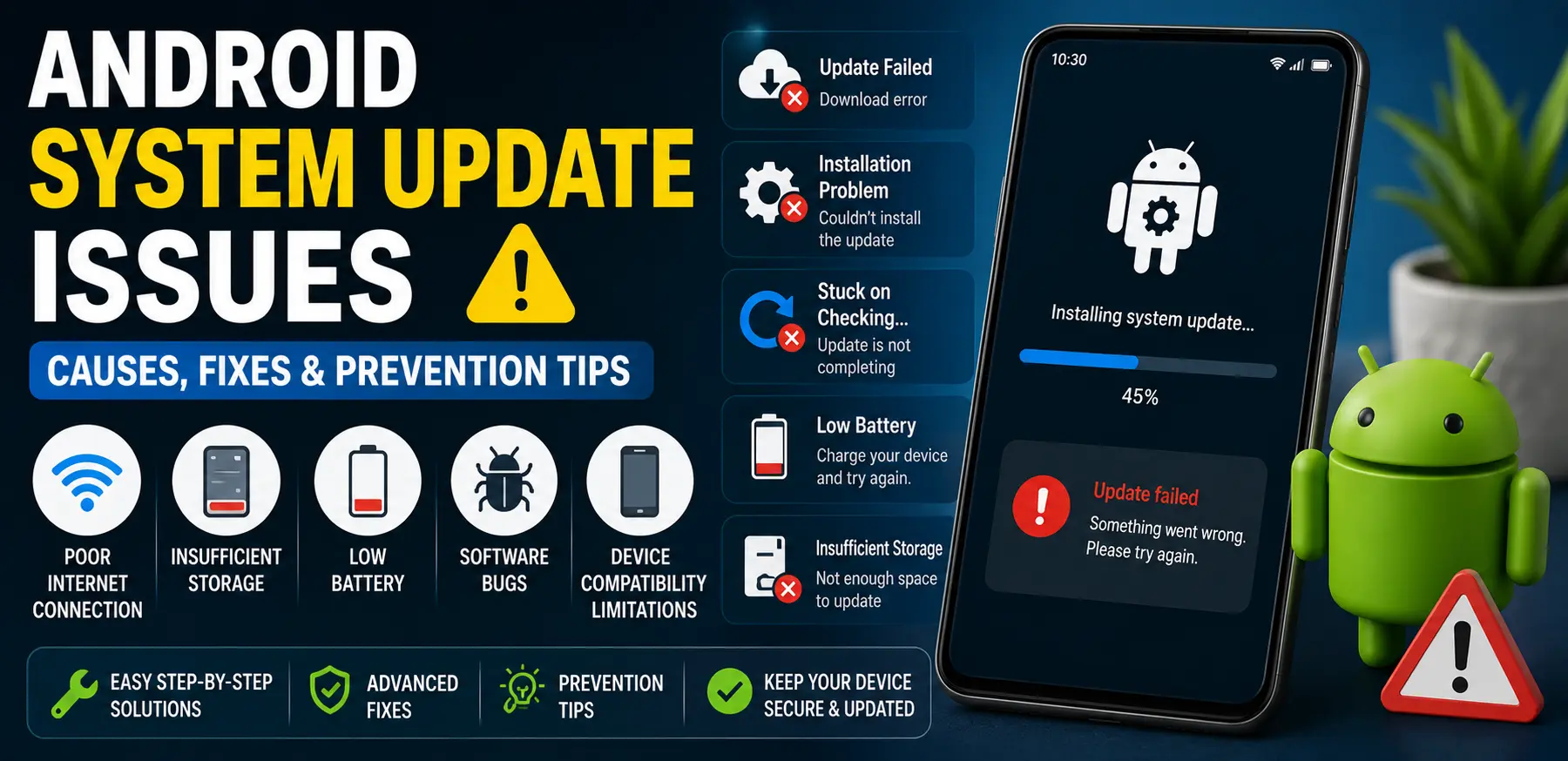
However, Android system update issues can sometimes prevent users from installing updates successfully. You might see update errors, download failures, installation problems, endless update loops, or a device that gets stuck during the update process. These problems can be frustrating, especially when you want access to the latest security improvements and features.
Fortunately, most Android system update issues can be fixed with simple troubleshooting steps. This guide explains the common causes of update failures and provides practical solutions to help you update your device successfully.
Main Causes of Android System Update Issues
1. Insufficient Storage Space
System updates require free storage space to download and install update files. If your device storage is nearly full, the update may fail before installation begins.
Photos, videos, apps, and cached files often consume significant storage without users realizing it.
2. Poor Internet Connection
A stable internet connection is essential when downloading update packages. Weak Wi-Fi signals, mobile data interruptions, or unstable networks can cause download errors and incomplete update files.
Large updates often require several hundred megabytes or even multiple gigabytes of data.
3. Low Battery Level
Many Android devices prevent updates from installing when the battery level is too low. This safety measure helps prevent shutdowns during installation, which could damage system files.
Most devices require at least 50% battery or connection to a charger before updating.
4. Software Bugs and System Glitches
Temporary software bugs can interfere with the update process. Corrupted system files, app conflicts, or failed previous updates may prevent new updates from installing properly.
These issues often appear as repeated update failures or unexpected error messages.
5. Device Compatibility Limitations
Not every Android device receives updates forever. Older phones eventually reach the end of their support period and stop receiving major Android updates.
In some cases, an update may be delayed because it has not yet been released for your specific model or region.
Step-by-Step Solutions
Step 1: Check Your Internet Connection
A reliable internet connection is the first requirement for successful updates.
To improve connectivity:
- Connect to a stable Wi-Fi network.
- Avoid public Wi-Fi whenever possible.
- Restart your router if necessary.
- Test internet speed by opening websites or apps.
Once the connection is stable, try downloading the update again.
Step 2: Free Up Storage Space
Lack of storage is one of the most common update problems.
To create free space:
- Open Settings.
- Tap Storage.
- Review storage usage.
- Delete unnecessary files.
- Remove unused apps.
- Clear cached data where appropriate.
Try maintaining several gigabytes of free space before updating.
Step 3: Charge Your Device
Before installing updates:
- Ensure the battery is above 50%.
- Connect the device to its charger.
- Keep charging throughout the installation process.
This reduces the risk of interruptions.
Step 4: Restart Your Phone
A simple restart can resolve temporary software issues.
- Press and hold the Power button.
- Select Restart.
- Wait for the device to reboot.
- Check for updates again.
Many update problems disappear after restarting.
Step 5: Check for Updates Manually
Sometimes automatic updates do not trigger properly.
To manually check:
- Open Settings.
- Tap Software Update.
- Select Download and Install.
- Follow the on-screen instructions.
If an update is available, begin the installation process.
Step 6: Disable VPN Services
VPN connections can occasionally interfere with update servers.
If you use a VPN:
- Open your VPN application.
- Disconnect the VPN.
- Restart the update process.
This may improve communication with the manufacturer’s update servers.
Step 7: Clear the Software Update Cache
Some devices store temporary update files that may become corrupted.
To clear update-related cache:
- Open Settings.
- Navigate to Apps.
- Show System Apps if available.
- Locate Software Update or Update Service.
- Open Storage.
- Tap Clear Cache.
Restart the device and try updating again.
Advanced Fixes
Use Safe Mode
A third-party application may sometimes interfere with system updates.
To test this:
- Press and hold the Power button.
- Touch and hold Power Off.
- Select Safe Mode if available.
- Attempt the update while in Safe Mode.
If the update succeeds, a recently installed app may be causing the problem.
Wipe Cache Partition
Some Android devices allow users to clear the system cache partition.
This process removes temporary system files without deleting personal data.
Steps vary by manufacturer, but generally involve:
- Powering off the device.
- Entering Recovery Mode.
- Selecting Wipe Cache Partition.
- Restarting the device.
This can resolve update-related system conflicts.
Update Using Manufacturer Software
Many smartphone brands provide desktop software for managing updates.
Examples include:
- Samsung Smart Switch
- Xiaomi Mi PC Suite
- Motorola Rescue Tool
Connecting the phone to a computer may allow updates to install successfully when over-the-air updates fail.
Remove Root Access
If your device has been rooted or modified, official updates may fail.
Restoring the original system software can often resolve update issues and allow normal updates to resume.
Perform a Factory Reset
If all other solutions fail, a factory reset may help.
Before proceeding:
- Back up all important files.
- Save account credentials.
- Ensure cloud backups are complete.
To reset:
- Open Settings.
- Select System.
- Tap Reset Options.
- Choose Erase All Data.
After setup, check for updates before reinstalling apps.
Tips to Prevent the Issue
Keep Storage Space Available
Avoid filling your device storage completely.
Regularly remove unnecessary files and applications to ensure enough room for future updates.
Install Updates Promptly
Delaying updates for long periods can sometimes create compatibility issues.
Installing updates when they become available helps keep your device current.
Use Reliable Wi-Fi Connections
Large update files download more reliably over stable Wi-Fi networks.
Avoid switching networks during downloads.
Keep Your Battery Healthy
A healthy battery supports successful updates.
Avoid excessive heat, use quality chargers, and maintain reasonable charging habits.
Restart Your Device Regularly
Periodic restarts help clear temporary system glitches that may affect updates.
Even one restart every few days can improve system stability.
Avoid Unofficial System Modifications
Rooting, custom ROMs, and unauthorized modifications may interfere with official update mechanisms.
Keeping the original software configuration usually provides the most reliable update experience.
FAQs
Why does my Android update keep failing?
Common causes include insufficient storage, poor internet connectivity, low battery levels, software bugs, or corrupted update files.
How much storage space do I need for an Android update?
Requirements vary by device and update size, but having at least 3–5 GB of free space is generally recommended.
Can I use mobile data for Android updates?
Some devices allow updates through mobile data, but Wi-Fi is usually recommended because updates can be large and consume significant data.
What should I do if my phone gets stuck during an update?
Wait at least 30 minutes to ensure the installation is not still in progress. If the device remains frozen, try a forced restart according to your manufacturer’s instructions.
Why is my phone not receiving new Android updates?
Your device may have reached the end of its software support period, or the update may not yet be available for your model or region.
Conclusion
Android system update issues can occur for several reasons, including limited storage, weak internet connections, software glitches, and compatibility restrictions. While update failures can be frustrating, most problems can be resolved through basic troubleshooting steps such as freeing storage space, restarting the device, improving connectivity, and clearing update caches.
For more persistent issues, advanced solutions like using Safe Mode, wiping the cache partition, updating through manufacturer software, or performing a factory reset can often restore normal update functionality.
Keeping your Android device updated is one of the best ways to maintain security, performance, and access to new features. By following the solutions and preventive tips in this guide, you can reduce update-related problems and ensure your device remains reliable for everyday use.
- AI Powered Cyber Defense How Artificial Intelligence Strengthens Modern Cybersecurity
- Machine Learning in Cybersecurity How Intelligent Systems Help Detect and Prevent Cyber Threats
- AI in Cybersecurity How Artificial Intelligence Is Transforming Digital Security
- AI Threat Detection How Artificial Intelligence Helps Stop Cyber Threats Before They Cause Damage
- Artificial Intelligence Security Solutions A Practical Guide to Smarter Cyber Protection
