
Introduction
Android phones are powerful and flexible, but they can sometimes develop problems that affect daily use. Apps may crash unexpectedly, the phone may become slow, the battery may drain too quickly, or WiFi and mobile networks may stop working properly. These issues can be frustrating, especially when you depend on your phone for work, communication, entertainment, or online payments.
FOR MORE SOLUTIONS VISIT
Many Android problems are caused by software glitches, overloaded storage, outdated apps, or incorrect settings. The good news is that most issues can be fixed without visiting a repair center or buying a new phone.
Understanding basic troubleshooting methods can help you save time, improve performance, and keep your device running smoothly for longer. This Android phone troubleshooting guide explains practical solutions that beginners can easily follow.
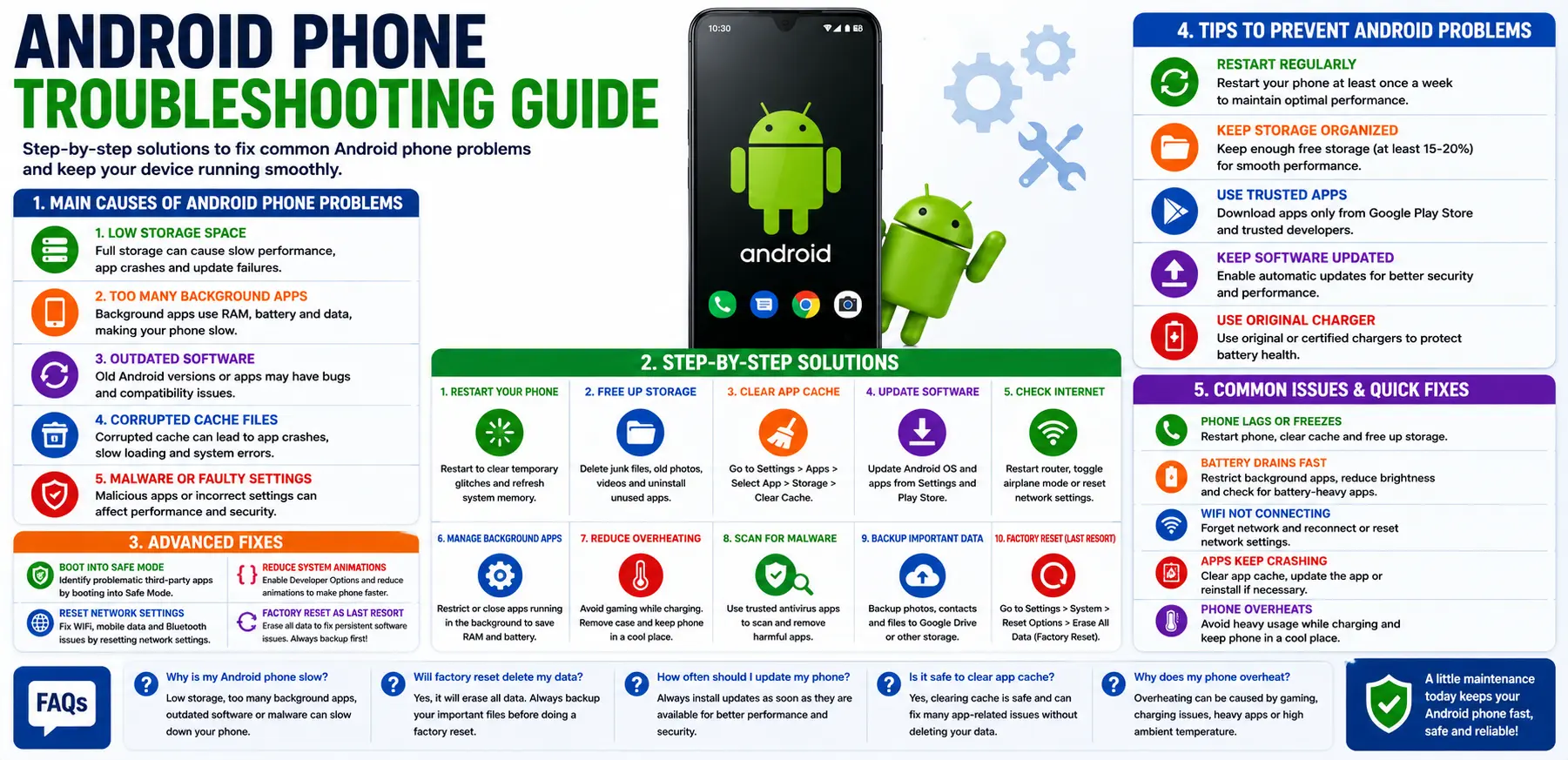
Main Causes of Android Phone Problems
1. Low Storage Space
When phone storage becomes nearly full, Android devices may slow down or freeze. Apps also need free storage space to run properly.
Low storage can cause:
- App crashes
- Lagging
- Failed updates
- Slow performance
2. Too Many Background Apps
Many apps continue running in the background even when not actively used. This consumes RAM, battery, and processing power.
Social media apps, cloud storage apps, and messaging apps are common examples.
3. Outdated Software
Old Android versions and outdated apps may contain bugs or compatibility problems.
Manufacturers release updates to:
- Improve performance
- Fix security issues
- Improve battery optimization
- Reduce crashes
4. Corrupted Cache Files
Apps create temporary cache files to load content faster. Over time, these files may become corrupted and cause problems.
This can lead to:
- Slow apps
- App crashes
- Loading issues
5. Faulty Settings or Malware
Incorrect system settings or harmful apps may affect Android performance and stability.
Suspicious apps can:
- Drain battery
- Slow down the phone
- Use excessive data
- Cause overheating
Step-by-Step Solutions
Restart Your Android Phone
Restarting is one of the easiest and most effective troubleshooting methods.
A restart:
- Clears temporary processes
- Refreshes system memory
- Stops frozen apps
Restart your phone at least once every few days.
Free Up Storage Space
Delete Unnecessary Files
Remove:
- Duplicate photos
- Old videos
- Downloads
- Large unused files
Keeping free storage available helps Android run smoothly.
Uninstall Unused Apps
Many users keep apps they no longer use.
Delete:
- Unused games
- Shopping apps
- Temporary editing tools
- Rarely used apps
This improves both speed and storage space.
Clear App Cache
Clearing cache can fix app-related issues.
Steps:
- Open Settings
- Tap Apps
- Select the app
- Open Storage
- Tap Clear Cache
Avoid clearing app data unless necessary.
Update Android and Apps
Install System Updates
Android updates improve:
- Stability
- Security
- Performance
- Compatibility
Check regularly for updates in phone settings.
Update Apps Through Play Store
Outdated apps may cause crashes or slowdowns.
Enable automatic app updates if possible.
Check Internet Connections
If WiFi or mobile data is not working properly:
- Restart the router
- Turn airplane mode on and off
- Reconnect to the network
- Reset network settings if necessary
Connection problems are often temporary.
Disable Unnecessary Background Apps
Restrict apps that constantly run in the background.
Steps:
- Open Settings
- Tap Apps
- Select the app
- Open Battery
- Choose Restricted
This improves battery life and performance.
Reduce Overheating
Overheating can slow down Android phones and damage battery health.
Avoid:
- Gaming while charging
- Direct sunlight
- Heavy multitasking for long periods
Remove the phone case temporarily if the device becomes too hot.
Advanced Fixes
Boot Into Safe Mode
Safe Mode disables third-party apps temporarily.
If the phone works properly in Safe Mode, a recently installed app may be causing the issue.
This helps identify problematic apps.
Reset Network Settings
Network problems can often be fixed by resetting network settings.
Steps:
- Open Settings
- Go to System
- Tap Reset Options
- Select Reset WiFi, Mobile & Bluetooth
This does not remove personal files.
Scan for Malware
Suspicious apps can create performance and security issues.
Use trusted antivirus apps to scan your device occasionally.
Avoid downloading apps from unknown websites.
Reduce System Animations
Animations may slow older Android devices.
Enable Developer Options:
- Open Settings
- Tap About Phone
- Tap Build Number several times
Then reduce:
- Window animation scale
- Transition animation scale
- Animator duration scale
This makes the phone feel faster.
Factory Reset as a Last Resort
If major problems continue after troubleshooting, a factory reset may help.
Before resetting:
- Backup important files
- Save passwords
- Sync contacts
A reset removes software clutter and hidden issues.
Tips to Prevent Android Problems
Restart Your Phone Regularly
Restarting helps refresh memory and improve stability.
Keep Storage Organized
Delete unnecessary files regularly and avoid filling storage completely.
Install Apps From Trusted Sources
Download apps only from:
- Google Play Store
- Trusted developers
Avoid unknown APK files.
Keep Software Updated
Updates improve:
- Performance
- Security
- Battery efficiency
Enable automatic updates whenever possible.
Avoid Cheap Chargers
Low-quality chargers may:
- Damage battery health
- Cause overheating
- Create charging problems
Use original or certified chargers.
FAQs
Why is my Android phone slow?
Low storage, too many background apps, outdated software, or overheating are common causes of slow performance.
Does clearing cache improve Android performance?
Yes. Clearing cache removes temporary files that may slow apps or cause loading issues.
Is factory reset safe?
Yes, but it deletes personal data. Always backup important files before resetting your phone.
Why does my Android phone overheat?
Overheating may happen because of gaming, charging issues, heavy app usage, or high temperatures.
How often should I restart my Android phone?
Restarting every few days helps refresh system performance and reduce temporary issues.
Conclusion
Android phone problems can be frustrating, but many issues can be solved with simple troubleshooting methods. Freeing storage, clearing cache, updating software, and managing background apps can greatly improve performance and stability.
Advanced fixes like Safe Mode, resetting network settings, and factory resets can help solve more serious problems when basic solutions are not enough.
Following this Android phone troubleshooting guide can help keep your device faster, safer, and more reliable for everyday use.
- AI Powered Cyber Defense How Artificial Intelligence Strengthens Modern Cybersecurity
- Machine Learning in Cybersecurity How Intelligent Systems Help Detect and Prevent Cyber Threats
- AI in Cybersecurity How Artificial Intelligence Is Transforming Digital Security
- AI Threat Detection How Artificial Intelligence Helps Stop Cyber Threats Before They Cause Damage
- Artificial Intelligence Security Solutions A Practical Guide to Smarter Cyber Protection
