
Introduction
Android phones are designed to handle many tasks smoothly, but system problems can appear over time and affect overall performance. Apps may crash unexpectedly, the phone may freeze, restart randomly, overheat, or become unusually slow. Sometimes the device may refuse to install updates, connect to WiFi properly, or respond to touch commands.
FOR MORE SOLUTIONS VISIT
These issues can interrupt work, communication, online classes, gaming, and everyday activities. Many users think serious Android system problems always require professional repair or a new device, but that is not always true.
In many cases, Android issues are caused by overloaded storage, outdated software, corrupted cache files, or problematic apps. With the right troubleshooting steps, most system problems can be fixed without spending money.
This guide explains practical ways to fix Android system problems using beginner-friendly solutions that actually work.
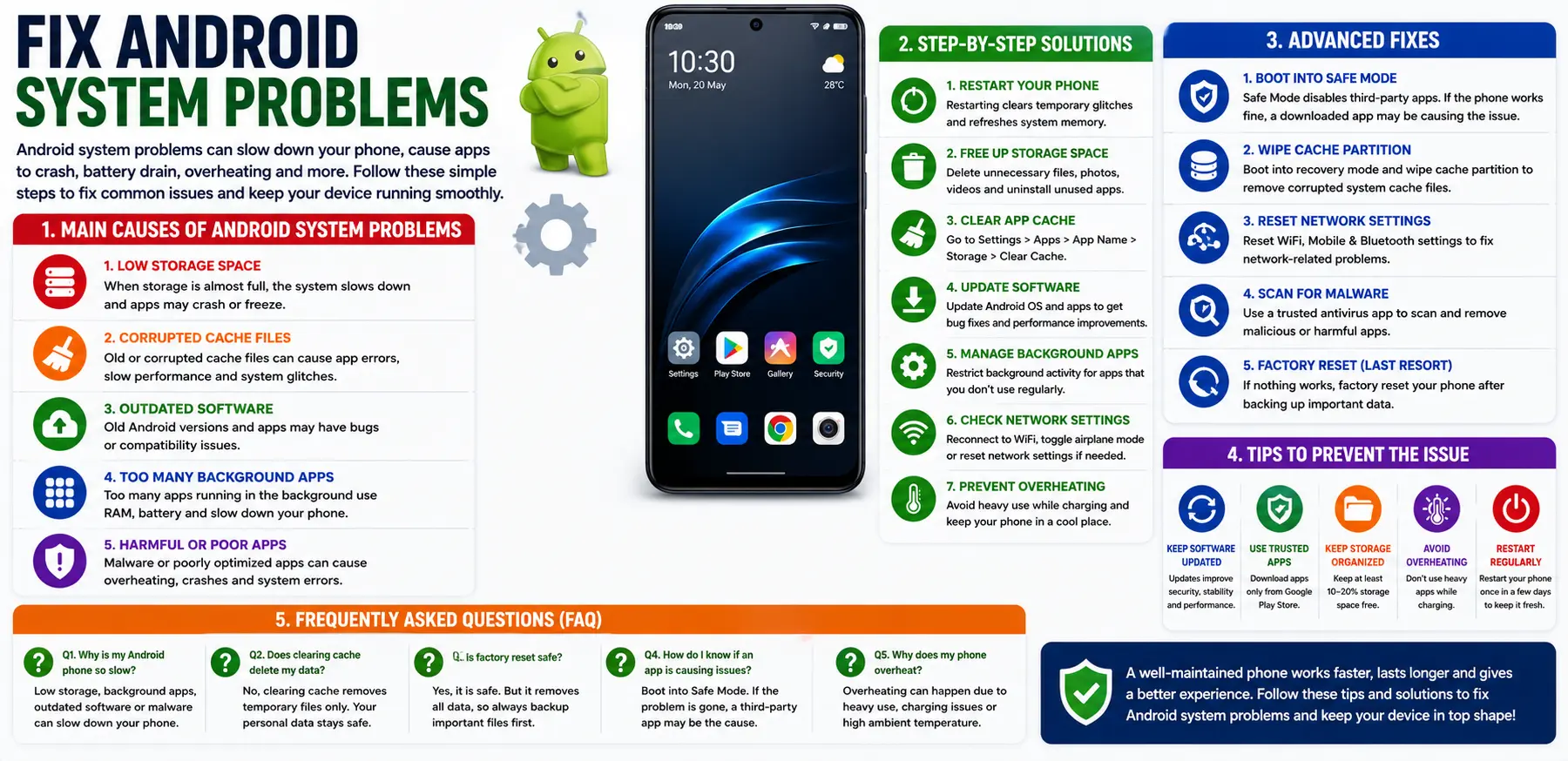
Main Causes of Android System Problems
1. Low Storage Space
Android devices need free storage to run efficiently. When storage becomes almost full, the system struggles to manage temporary files and app data.
Low storage may cause:
- Lagging
- App crashes
- Failed updates
- Freezing
2. Corrupted Cache Files
Apps and system services store temporary files called cache to improve loading speed. Over time, these files may become corrupted.
Corrupted cache can lead to:
- Slow performance
- App errors
- System glitches
3. Outdated Android Software
Old software versions may contain bugs, security issues, or compatibility problems.
Manufacturers release updates to improve:
- Stability
- Performance
- Battery optimization
- Security
4. Too Many Background Apps
Many apps continue running in the background even when not actively used. This consumes RAM, battery power, and processing resources.
Heavy background activity can slow the entire device.
5. Harmful or Poorly Optimized Apps
Some apps are poorly designed or may contain malware.
These apps can:
- Drain battery
- Cause overheating
- Crash the system
- Slow performance
Step-by-Step Solutions
Restart Your Android Phone
Restarting is one of the easiest ways to fix temporary Android problems.
A restart:
- Clears temporary processes
- Refreshes system memory
- Stops frozen apps
Restart your phone every few days to maintain stable performance.
Free Up Storage Space
Delete Unnecessary Files
Remove:
- Duplicate photos
- Old videos
- Downloads
- Unused documents
Keeping free storage available improves system performance.
Uninstall Unused Apps
Many users install apps they rarely use.
Delete:
- Unused games
- Shopping apps
- Editing tools
- Temporary utility apps
This reduces background activity and frees storage.
Clear App Cache
Clearing cache can solve many Android system issues.
Steps:
- Open Settings
- Tap Apps
- Select the app
- Tap Storage
- Choose Clear Cache
Avoid clearing app data unless necessary.
Update Android Software
Install System Updates
Android updates often include:
- Bug fixes
- Performance improvements
- Security patches
To update:
- Open Settings
- Tap Software Update
- Download and install updates if available
Update Apps
Outdated apps may create compatibility problems.
Update apps through the Google Play Store regularly.
Disable Unnecessary Background Apps
Restrict apps that constantly run in the background.
Steps:
- Open Settings
- Tap Apps
- Select the app
- Go to Battery
- Choose Restricted
This improves speed and battery life.
Check Internet and Network Settings
Some Android problems are related to poor network connections.
Try:
- Restarting the router
- Toggling airplane mode
- Forgetting and reconnecting to WiFi
- Resetting network settings
These steps often fix connectivity problems.
Reduce Overheating
Overheating can slow down Android performance and damage battery health.
Avoid:
- Gaming while charging
- Heavy multitasking
- Direct sunlight exposure
Remove the phone case temporarily if the device becomes too hot.
Advanced Fixes
Boot Into Safe Mode
Safe Mode temporarily disables third-party apps.
If the phone works normally in Safe Mode, a recently installed app may be causing the problem.
This helps identify problematic apps more easily.
Wipe Cache Partition
System cache files may sometimes become corrupted.
General Steps:
- Turn off the phone
- Enter recovery mode
- Select Wipe Cache Partition
This does not remove personal files.
Steps may vary slightly depending on the phone brand.
Reset Network Settings
Network-related issues may be fixed by resetting network settings.
Steps:
- Open Settings
- Go to System
- Tap Reset Options
- Select Reset WiFi, Mobile & Bluetooth
This removes saved network settings but not personal data.
Scan for Malware
Malicious apps can create serious Android system problems.
Use trusted antivirus tools to scan your phone occasionally.
Avoid installing APK files from unknown websites.
Factory Reset as a Last Resort
If serious issues continue after trying all troubleshooting steps, a factory reset may help.
Before resetting:
- Backup important files
- Save passwords
- Sync contacts
Steps:
- Open Settings
- Go to System
- Tap Reset
- Choose Erase All Data
A clean reset removes hidden software problems and system clutter.
Tips to Prevent Android System Problems
Keep Software Updated
Updates improve:
- Stability
- Security
- Performance
Enable automatic updates whenever possible.
Avoid Installing Too Many Apps
Every app uses storage, memory, and system resources.
Install only apps you truly need.
Use Trusted Apps Only
Download apps from:
- Google Play Store
- Trusted developers
Avoid suspicious or modified APK files.
Restart Your Phone Regularly
Regular restarts help refresh system performance and reduce temporary glitches.
Keep Storage Organized
Delete unnecessary files regularly and avoid filling storage completely.
Good storage management improves long-term stability.
FAQs
Why is my Android phone freezing?
Freezing is usually caused by low storage, background apps, overheating, or corrupted cache files.
Does clearing cache fix Android problems?
Yes. Clearing cache can improve performance and solve app-related issues without deleting personal data.
What is Safe Mode on Android?
Safe Mode disables third-party apps temporarily to help identify problematic applications.
Is factory reset safe for Android phones?
Yes, but it removes all personal data. Always backup important files before resetting.
Why does my Android phone restart randomly?
Random restarts may happen because of software bugs, overheating, faulty apps, or battery issues.
Conclusion
Android system problems can be frustrating, but most issues can be fixed with simple troubleshooting methods. Freeing storage, clearing cache, updating software, and controlling background apps can greatly improve device stability and performance.
Advanced fixes like Safe Mode, wiping cache partitions, and factory resets can help solve deeper system issues when basic solutions are not enough.
By following these tips to fix Android system problems, you can keep your phone running faster, smoother, and more reliably for everyday use.
- AI Powered Cyber Defense How Artificial Intelligence Strengthens Modern Cybersecurity
- Machine Learning in Cybersecurity How Intelligent Systems Help Detect and Prevent Cyber Threats
- AI in Cybersecurity How Artificial Intelligence Is Transforming Digital Security
- AI Threat Detection How Artificial Intelligence Helps Stop Cyber Threats Before They Cause Damage
- Artificial Intelligence Security Solutions A Practical Guide to Smarter Cyber Protection
