
Introduction
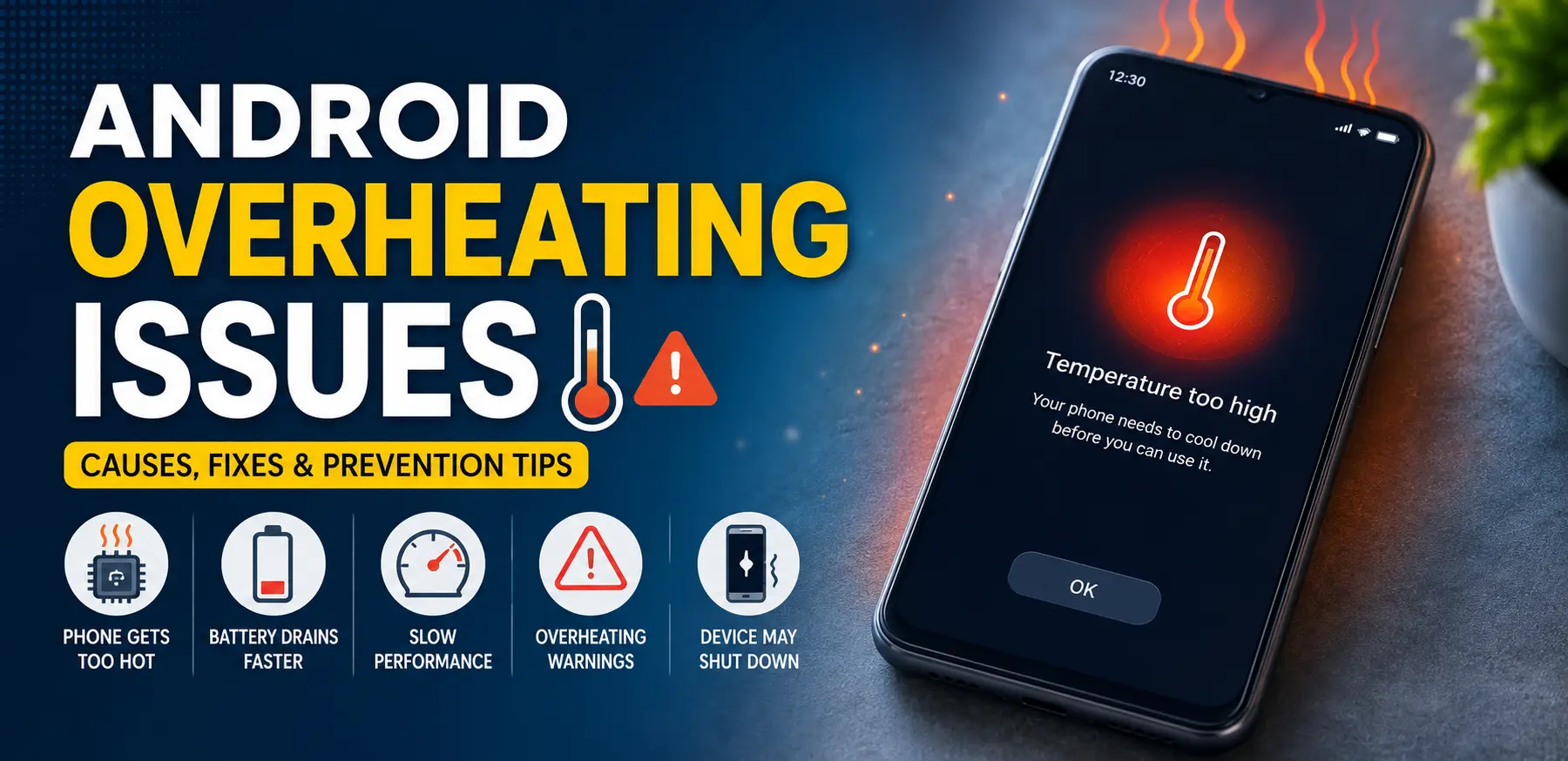
Android overheating issue are a common problem that many smartphone users face at some point. While it’s normal for a phone to become slightly warm during charging, gaming, or video streaming, excessive heat can affect performance, battery life, and even the long-term health of your device.
FOR MORE SOLUTIONS VISIT
When an Android phone overheats, you may notice slower performance, app crashes, battery drain, or warning messages telling you to cool down the device. In severe cases, overheating can damage internal components and reduce the lifespan of the battery.
The good news is that most overheating problems can be fixed with a few simple adjustments. This guide explains the most common causes of Android overheating issues and provides practical solutions that anyone can follow.
Main Causes of Android Overheating Issues
1. Heavy App Usage and Multitasking
Running demanding apps for long periods can put significant stress on your phone’s processor. Mobile games, video editing apps, and augmented reality applications require a lot of processing power, which generates heat.
If multiple apps are running in the background at the same time, the processor works harder, causing the device temperature to rise.
2. Charging Problems
Using low-quality chargers or damaged charging cables can cause your phone to heat up during charging. Fast charging technology can also generate more heat than standard charging, especially if the phone is being used while charging.
Charging under a pillow, blanket, or direct sunlight can make the situation even worse.
3. High Screen Brightness and Display Settings
The display is one of the most power-hungry components in a smartphone. Keeping brightness at maximum levels for extended periods increases power consumption and heat generation.
Features such as high refresh rates and always-on displays may also contribute to higher temperatures.
4. Software Bugs and Outdated Apps
Sometimes overheating isn’t caused by hardware but by software. A buggy app may continuously use processor resources in the background without your knowledge.
Similarly, outdated operating systems and apps may contain performance issues that lead to excessive heat.
5. Environmental Factors
External temperatures play a major role in smartphone heating. Leaving your phone in direct sunlight, inside a parked car, or using it in hot weather can quickly raise its temperature.
Even a healthy phone can struggle to stay cool in extreme conditions.
Step-by-Step Solutions
Step 1: Close Unnecessary Apps
Start by checking which apps are running.
- Open the Recent Apps menu.
- Close apps you are not actively using.
- Restart the device if many apps have been running for a long time.
This frees up processor resources and helps reduce heat production.
Step 2: Reduce Screen Brightness
Lowering screen brightness can immediately reduce power consumption.
To do this:
- Open Settings.
- Tap Display.
- Adjust Brightness to a comfortable level.
- Enable Adaptive Brightness if available.
This allows the phone to automatically optimize brightness based on lighting conditions.
Step 3: Remove the Phone Case Temporarily
Some protective cases trap heat and prevent proper airflow.
If your phone becomes unusually hot:
- Remove the case.
- Place the device in a cool, shaded area.
- Allow it to cool naturally.
Avoid placing the phone in a refrigerator or freezer, as sudden temperature changes can cause damage.
Step 4: Check Battery Usage
Identifying power-hungry apps can reveal the source of overheating.
- Open Settings.
- Go to Battery.
- Select Battery Usage.
- Review apps consuming excessive battery power.
If an app is using an unusual amount of power, consider updating, limiting, or uninstalling it.
Step 5: Update Apps and Android Software
Software updates often include performance improvements and bug fixes.
To update Android:
- Open Settings.
- Select Software Update.
- Download and install available updates.
To update apps:
- Open Google Play Store.
- Tap Manage Apps & Device.
- Update all installed apps.
Step 6: Disable Unused Features
Features running constantly in the background can contribute to heating.
Consider disabling:
- Bluetooth when not in use
- GPS location services
- Mobile hotspot
- NFC
- Unused widgets
Reducing background activity lowers processor workload.
Step 7: Restart Your Device
A simple restart can clear temporary software problems.
- Press and hold the power button.
- Select Restart.
- Wait for the device to reboot.
This often resolves minor software-related overheating issues.
Advanced Fixes
Clear App Cache
Corrupted cache files can cause apps to behave unexpectedly.
To clear cache:
- Open Settings.
- Go to Apps.
- Select the problematic app.
- Tap Storage.
- Choose Clear Cache.
Avoid clearing app data unless necessary, as it may remove saved settings.
Scan for Malware
Malicious apps can run hidden processes that continuously use system resources.
To protect your phone:
- Use Google Play Protect.
- Remove apps from unknown sources.
- Run a security scan using a trusted antivirus application.
A malware-free device typically runs cooler and more efficiently.
Reset App Preferences
Incorrect app settings can sometimes lead to overheating.
To reset app preferences:
- Open Settings.
- Navigate to Apps.
- Tap the menu icon.
- Select Reset App Preferences.
This restores default app behavior without deleting personal data.
Factory Reset the Device
If overheating continues despite other fixes, a factory reset may help.
Before proceeding:
- Back up photos and important files.
- Ensure login credentials are available.
Then:
- Open Settings.
- Select System.
- Tap Reset Options.
- Choose Erase All Data.
A factory reset removes software conflicts that may be causing excessive heat.
Replace a Degraded Battery
Older batteries often generate more heat than newer ones.
Signs of battery-related overheating include:
- Battery swelling
- Rapid battery drain
- Excessive heat while charging
- Unexpected shutdowns
If these symptoms appear, have the battery inspected or replaced by a qualified technician.
Tips to Prevent the Issue
Avoid Direct Sunlight
Keep your phone away from direct sunlight whenever possible. High ambient temperatures make cooling much more difficult.
Use Original Charging Accessories
Original chargers and certified accessories are designed to provide safe voltage and current levels.
Cheap or counterfeit chargers can increase heat and potentially damage the device.
Limit Intensive Gaming Sessions
Extended gaming sessions can significantly raise processor temperatures.
Take short breaks between sessions to allow the phone to cool down naturally.
Keep Storage Space Available
A nearly full storage drive can impact performance.
Try to maintain at least 10–15% free storage space for smooth operation.
Regularly Update Software
Manufacturers frequently release updates that improve efficiency and thermal management.
Keeping software current helps prevent many overheating-related problems.
Monitor Battery Health
Pay attention to unusual battery behavior. Replacing an aging battery before it fails can prevent many heat-related issues.
FAQs
Why does my Android phone overheat even when I’m not using it?
Background apps, software bugs, malware, poor network signals, or battery problems can cause overheating even when the phone appears idle.
Is it normal for my phone to get warm while charging?
Yes, mild warmth during charging is normal. However, if the phone becomes excessively hot or displays temperature warnings, stop charging and investigate the cause.
Can overheating damage my Android phone?
Yes. Prolonged overheating can reduce battery lifespan, affect performance, and potentially damage internal components over time.
Should I put my phone in the refrigerator to cool it down?
No. Rapid temperature changes can create condensation inside the device, leading to hardware damage. Allow the phone to cool naturally in a shaded, well-ventilated area.
Which apps commonly cause overheating?
High-performance games, video editing tools, navigation apps, streaming services, and poorly optimized applications are among the most common causes.
Conclusion
Android overheating issues can be frustrating, but they are often caused by factors that are relatively easy to identify and fix. Heavy app usage, charging habits, software problems, and environmental conditions are among the most common reasons a phone becomes too hot.
By closing unnecessary apps, updating software, monitoring battery usage, and following good charging practices, most users can significantly reduce overheating problems. For persistent cases, advanced solutions such as clearing cache, scanning for malware, or replacing an aging battery may be necessary.
A well-maintained Android device should stay comfortably cool during everyday use. Regular updates, careful charging habits, and mindful app management can help keep your phone performing smoothly for years to come.
- AI Powered Cyber Defense How Artificial Intelligence Strengthens Modern Cybersecurity
- Machine Learning in Cybersecurity How Intelligent Systems Help Detect and Prevent Cyber Threats
- AI in Cybersecurity How Artificial Intelligence Is Transforming Digital Security
- AI Threat Detection How Artificial Intelligence Helps Stop Cyber Threats Before They Cause Damage
- Artificial Intelligence Security Solutions A Practical Guide to Smarter Cyber Protection
