
Introduction
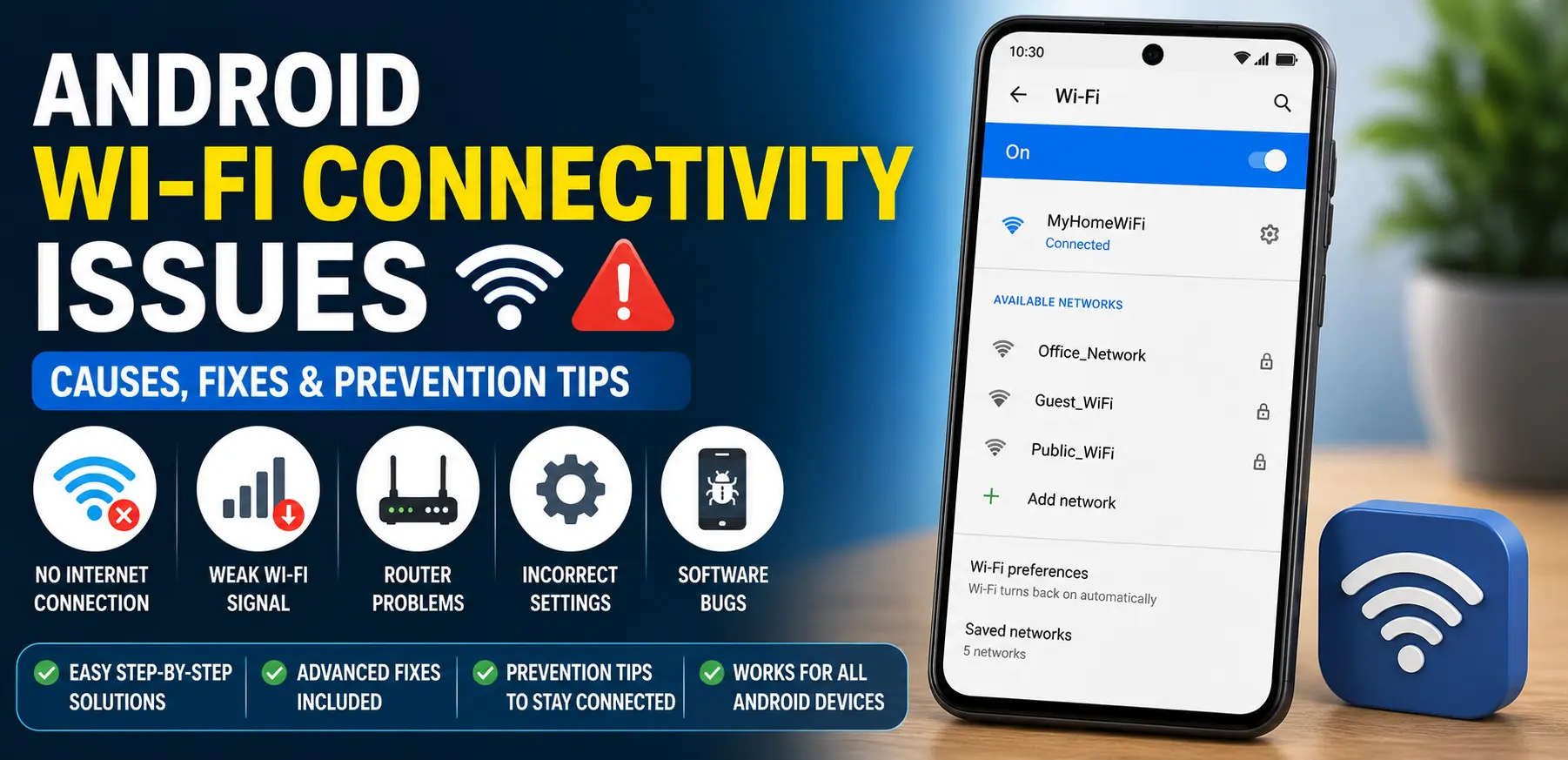
Android Wi-Fi connectivity issues can be frustrating, especially when you rely on your smartphone for work, communication, entertainment, or online learning. A stable Wi-Fi connection is essential for browsing the internet, streaming videos, downloading files, and using apps that require internet access
FOR MORE SOLUTIONS VISIT
When Wi-Fi problems occur, you may experience slow internet speeds, frequent disconnections, difficulty connecting to a network, or messages indicating that the internet is unavailable. These issues can affect productivity and make even simple online tasks difficult.
The good news is that most Android Wi-Fi connectivity issues can be resolved without professional assistance. Whether the problem is caused by network settings, software bugs, router issues, or interference, there are several practical solutions you can try. This guide explains the common causes, effective fixes, and preventive measures to help keep your Android device connected.
Main Causes of Android Wi-Fi Connectivity Issues
1. Weak Wi-Fi Signal
One of the most common reasons for connection problems is a weak signal. If you are too far from the router or there are multiple walls and obstacles between your phone and the router, the signal strength may decrease significantly.
A weak signal can lead to slow speeds, buffering, and frequent disconnections.
2. Router Problems
Sometimes the issue is not with the Android device but with the Wi-Fi router itself. Routers can experience temporary glitches, firmware issues, overheating, or network congestion.
A malfunctioning router may prevent devices from connecting properly or maintaining a stable connection.
3. Incorrect Network Settings
Network settings stored on your Android phone may become corrupted over time. Incorrect DNS settings, saved network profiles, or outdated configurations can interfere with Wi-Fi connectivity.
This can cause connection failures even when the Wi-Fi network is working correctly.
4. Software Bugs and Outdated Android Versions
Software updates are designed to improve performance and fix bugs. If your device is running outdated software, compatibility issues may occur.
Occasionally, newly installed apps or system bugs can also interfere with wireless connections.
5. Network Interference
Many electronic devices use wireless frequencies that can interfere with Wi-Fi signals. Common sources of interference include:
- Bluetooth devices
- Wireless speakers
- Microwave ovens
- Baby monitors
- Smart home devices
Interference can weaken the signal and cause unstable connections.
Step-by-Step Solutions
Step 1: Turn Wi-Fi Off and On Again
The simplest solution is often the most effective.
- Swipe down to open Quick Settings.
- Turn off Wi-Fi.
- Wait for 10 seconds.
- Turn Wi-Fi back on.
- Try reconnecting to the network.
This refreshes the connection and may resolve temporary glitches.
Step 2: Restart Your Android Device
A restart clears temporary system errors that may affect wireless connectivity.
- Press and hold the Power button.
- Tap Restart.
- Wait for the phone to reboot.
- Reconnect to the Wi-Fi network.
Many connection issues disappear after a simple restart.
Step 3: Restart Your Router
If multiple devices are having internet problems, the router may be responsible.
- Unplug the router from the power source.
- Wait for 30 seconds.
- Plug it back in.
- Allow the router to fully restart.
Once the router is online, reconnect your Android device.
Step 4: Forget and Reconnect to the Network
Corrupted saved network data can cause connection failures.
- Open Settings.
- Tap Network & Internet.
- Select Wi-Fi.
- Choose your network.
- Tap Forget Network.
- Reconnect by entering the password again.
This creates a fresh connection profile.
Step 5: Check Airplane Mode
Airplane Mode disables wireless communications.
- Open Quick Settings.
- Verify that Airplane Mode is turned off.
- If it is enabled, disable it and reconnect to Wi-Fi.
Step 6: Move Closer to the Router
Weak signals can make the connection unstable.
Try moving closer to the router and test the connection again. If the signal improves, distance or obstacles may be causing the issue.
Step 7: Update Android Software
System updates often contain fixes for connectivity problems.
To check for updates:
- Open Settings.
- Tap Software Update.
- Select Download and Install.
- Install any available updates.
Restart the device after updating.
Advanced Fixes
Reset Network Settings
If standard solutions fail, resetting network settings can help.
- Open Settings.
- Go to System.
- Tap Reset Options.
- Select Reset Wi-Fi, Mobile & Bluetooth.
- Confirm the reset.
This removes stored network settings and restores default configurations.
Change Wi-Fi Frequency Band
Many routers support both 2.4 GHz and 5 GHz bands.
- 2.4 GHz offers better range.
- 5 GHz provides faster speeds at shorter distances.
Switching between these bands may improve connectivity depending on your environment.
Update Router Firmware
Outdated router firmware can create compatibility problems.
To update:
- Access your router’s admin panel.
- Locate the Firmware Update section.
- Install available updates.
- Restart the router.
Refer to your router manufacturer’s instructions if needed.
Disable Battery Optimization for Wi-Fi Apps
Some Android devices aggressively manage battery usage, which can affect network performance.
To disable battery optimization:
- Open Settings.
- Tap Battery.
- Select Battery Optimization.
- Choose important apps.
- Set them to Not Optimized.
This can improve connection stability for messaging and communication apps.
Check for Problematic Apps
Certain apps may interfere with network functions.
If Wi-Fi problems began after installing a new app:
- Uninstall the app temporarily.
- Restart the device.
- Test the connection.
If the issue disappears, the app may be the cause.
Perform a Factory Reset
As a last resort, a factory reset can eliminate software-related problems.
Before proceeding:
- Back up important data.
- Save passwords and account information.
To reset:
- Open Settings.
- Select System.
- Tap Reset Options.
- Choose Erase All Data.
After setup, test Wi-Fi before reinstalling apps.
Tips to Prevent the Issue
Keep Android Updated
Regular software updates improve security, performance, and network compatibility.
Enable automatic updates whenever possible.
Restart Your Router Periodically
Routers can accumulate temporary errors over time.
Restarting the router every few weeks can improve overall performance and stability.
Avoid Router Placement Mistakes
Place the router:
- In a central location
- Away from walls
- Away from metal objects
- Away from electronic interference sources
Proper placement improves signal coverage throughout your home.
Remove Unused Saved Networks
Too many saved networks can occasionally create connection confusion.
Delete networks you no longer use from your Wi-Fi settings.
Use Strong Security Settings
Secure your network with WPA2 or WPA3 encryption.
Strong security helps prevent unauthorized users from slowing down your connection.
Monitor Connected Devices
Too many devices connected to the same network can reduce performance.
Regularly review connected devices and disconnect those that are unnecessary.
FAQs
Why does my Android phone keep disconnecting from Wi-Fi?
Common causes include weak signals, router problems, software bugs, battery optimization settings, or network interference.
Why is my Wi-Fi connected but there is no internet access?
This usually indicates a router or internet service provider issue rather than a problem with the Android device itself.
Can a software update fix Wi-Fi problems?
Yes. Software updates often contain bug fixes, security patches, and network improvements that can resolve connectivity issues.
Should I reset network settings if Wi-Fi is not working?
Yes. Resetting network settings is a safe troubleshooting step that often resolves persistent connection problems without affecting personal files.
Why is Wi-Fi slow on my Android phone but fast on other devices?
The issue may be related to device-specific settings, outdated software, battery optimization features, or a problematic application running in the background.
Conclusion
Android Wi-Fi connectivity issues can occur for many reasons, including weak signals, router problems, network interference, and software-related bugs. While these problems can be frustrating, most can be resolved with simple troubleshooting steps such as restarting the device, reconnecting to the network, updating software, or resetting network settings.
For more persistent issues, advanced solutions like updating router firmware, changing frequency bands, or performing a factory reset may be necessary. Taking preventive measures such as keeping software updated, maintaining your router, and optimizing network placement can significantly reduce future connectivity problems.
A reliable Wi-Fi connection is essential for everyday smartphone use. By following the solutions and tips in this guide, you can improve network stability and enjoy a smoother Android experience.
- AI Powered Cyber Defense How Artificial Intelligence Strengthens Modern Cybersecurity
- Machine Learning in Cybersecurity How Intelligent Systems Help Detect and Prevent Cyber Threats
- AI in Cybersecurity How Artificial Intelligence Is Transforming Digital Security
- AI Threat Detection How Artificial Intelligence Helps Stop Cyber Threats Before They Cause Damage
- Artificial Intelligence Security Solutions A Practical Guide to Smarter Cyber Protection
