
Introduction
Windows updates play an important role in keeping your computer secure, stable, and compatible with the latest software. Microsoft regularly releases updates that include security patches, bug fixes, performance improvements, and new features.
FOR MORE SOLUTIONS VISIT
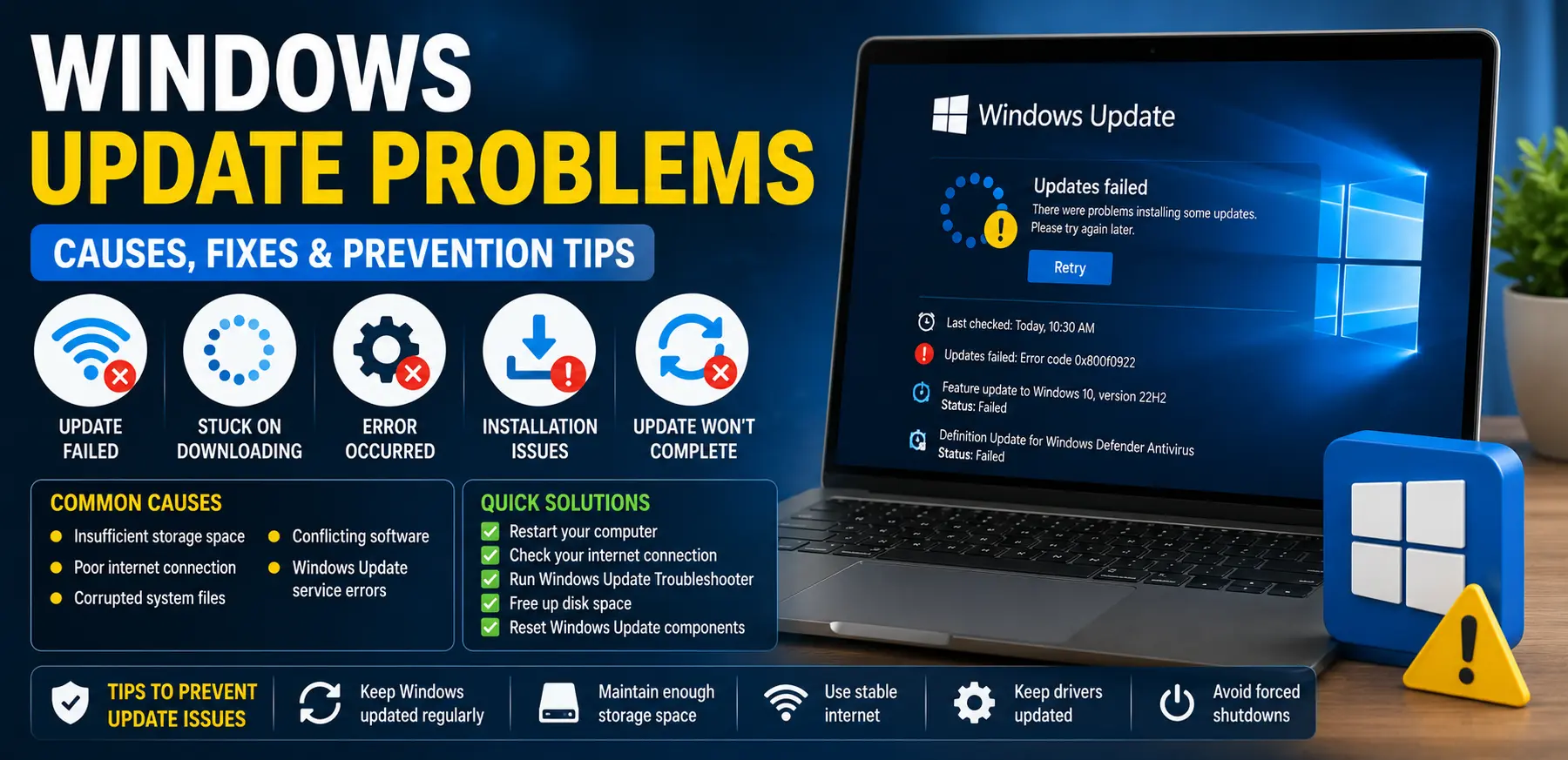
However, Windows update problems are common and can affect users of all experience levels. You might encounter updates that fail to download, get stuck during installation, display error codes, or repeatedly attempt to install without success. In some cases, a failed update can even cause slow performance or startup issues.
These problems can be frustrating because they may leave your computer vulnerable to security risks or prevent access to important system improvements. Fortunately, most Windows update problems can be resolved using simple troubleshooting methods. This guide explains the common causes of update failures and provides practical solutions that beginners can easily follow.
Main Causes of Windows Update Problems
1. Insufficient Storage Space
Windows updates often require several gigabytes of free disk space to download and install successfully.
If your storage drive is nearly full, Windows may not have enough room to complete the update process. Temporary files, old downloads, and unused applications commonly consume valuable storage space.
2. Internet Connection Issues
A stable internet connection is necessary for downloading update files.
Weak Wi-Fi signals, network interruptions, or temporary internet outages can cause incomplete downloads, update errors, and installation failures.
3. Corrupted System Files
Windows relies on many system files during updates. If these files become corrupted due to software crashes, malware, or unexpected shutdowns, update installations may fail.
Corrupted files are one of the most common reasons behind recurring update errors.
4. Conflicting Software
Certain third-party applications can interfere with Windows Update.
Antivirus software, firewall programs, system optimization tools, and outdated drivers may prevent updates from installing properly.
5. Windows Update Service Problems
Windows uses several background services to manage updates.
If one of these services stops working correctly or becomes stuck, updates may fail to download or install even when everything else appears normal.
Step-by-Step Solutions
Step 1: Restart Your Computer
Many update problems can be resolved with a simple restart.
- Save your work.
- Close all open applications.
- Restart your computer.
- Check for updates again.
Restarting refreshes system processes and can clear temporary issues affecting Windows Update.
Step 2: Check Your Internet Connection
Before troubleshooting further, make sure your internet connection is stable.
To verify connectivity:
- Open a web browser.
- Visit several websites.
- Run a speed test if necessary.
- Restart your router if the connection seems unstable.
A reliable connection helps prevent download interruptions.
Step 3: Free Up Disk Space
Low storage space can prevent updates from installing.
To free up space:
- Open Settings.
- Select System.
- Click Storage.
- Review storage usage.
- Delete unnecessary files.
- Empty the Recycle Bin.
Removing large unused files can significantly improve update success rates.
Step 4: Run the Windows Update Troubleshooter
Microsoft includes a built-in troubleshooting tool specifically for update issues.
To run it:
- Open Settings.
- Select System.
- Click Troubleshoot.
- Choose Other Troubleshooters.
- Run Windows Update Troubleshooter.
Allow Windows to scan and automatically fix detected problems.
Step 5: Pause and Resume Updates
Sometimes restarting the update process can resolve temporary glitches.
- Open Settings.
- Select Windows Update.
- Pause updates temporarily.
- Wait a few minutes.
- Resume updates.
This can refresh the download process and clear minor errors.
Step 6: Check Date and Time Settings
Incorrect system time can interfere with Microsoft’s update servers.
To verify settings:
- Open Settings.
- Select Time & Language.
- Click Date & Time.
- Enable automatic date and time settings.
Accurate system time improves server communication.
Step 7: Temporarily Disable Third-Party Antivirus Software
Some antivirus programs can block update installations.
If update failures continue:
- Disable your antivirus temporarily.
- Attempt the update.
- Re-enable protection after completion.
Always use caution when temporarily disabling security software.
Advanced Fixes
Run System File Checker (SFC)
The System File Checker tool can repair corrupted Windows system files.
To use it:
- Open Command Prompt as Administrator.
- Type:
sfc /scannow
- Press Enter.
- Wait for the scan to complete.
- Restart the computer.
This process can repair files that prevent updates from installing.
Use the DISM Tool
If SFC cannot resolve the issue, use the Deployment Image Servicing and Management tool.
Open Command Prompt as Administrator and run:
DISM /Online /Cleanup-Image /RestoreHealth
After completion:
- Restart the computer.
- Check for updates again.
DISM repairs the Windows system image and often resolves stubborn update failures.
Reset Windows Update Components
Corrupted update components can cause repeated installation problems.
To reset them:
- Open Command Prompt as Administrator.
- Stop Windows Update services.
- Rename update folders.
- Restart the services.
This process rebuilds Windows Update files and settings.
Users unfamiliar with command-line tools should follow Microsoft’s official instructions carefully.
Install Updates Manually
Microsoft provides update packages through the Microsoft Update Catalog.
To install manually:
- Identify the update’s KB number.
- Visit the Microsoft Update Catalog website.
- Download the correct update version.
- Run the installer manually.
This method can bypass certain automatic update issues.
Perform an In-Place Upgrade
An in-place upgrade reinstalls Windows while preserving personal files and applications.
This solution is useful when update problems are caused by deeper system corruption.
Download the latest Windows installation media from Microsoft and follow the upgrade instructions.
Tips to Prevent the Issue
Keep Storage Space Available
Maintain adequate free space on your system drive.
A good rule is to keep at least 15–20% of your storage available for updates and system operations.
Install Updates Regularly
Avoid postponing updates for long periods.
Installing updates when they become available reduces the likelihood of encountering multiple update-related problems later.
Restart Your Computer Periodically
Regular restarts help clear temporary system errors and ensure update services function correctly.
Keep Drivers Updated
Outdated hardware drivers can sometimes create compatibility issues with Windows updates.
Update drivers through Windows Update or directly from hardware manufacturers when necessary.
Use Reliable Security Software
Choose reputable antivirus software and keep it updated.
Well-maintained security programs are less likely to interfere with Windows Update processes.
Avoid Forced Shutdowns
Turning off the computer while updates are installing can damage system files and create future update problems.
Allow updates to complete fully before shutting down your device.
FAQs
Why do Windows updates keep failing?
Common causes include insufficient storage, corrupted system files, internet connection issues, software conflicts, or problems with Windows Update services.
How much free space is needed for Windows updates?
Requirements vary, but having at least 20 GB of available storage is recommended for major updates to ensure smooth installation.
Is it safe to stop a Windows update while it is installing?
No. Interrupting an update during installation can corrupt system files and potentially create startup or stability issues.
What should I do if Windows Update is stuck at a certain percentage?
Wait at least one hour before assuming it is frozen. Large updates may take time to install. If progress remains unchanged, restart the computer and run the Windows Update Troubleshooter.
Can antivirus software block Windows updates?
Yes. Some antivirus or security programs may interfere with update downloads or installations. Temporarily disabling the software can help determine whether it is causing the issue.
Conclusion
Windows update problems can occur for many reasons, including low storage space, internet connectivity issues, corrupted system files, software conflicts, and malfunctioning update services. While these issues can seem complicated, most can be resolved using straightforward troubleshooting methods.
Starting with basic fixes such as restarting your computer, checking your internet connection, freeing storage space, and running the Windows Update Troubleshooter often resolves the problem quickly. For more persistent issues, advanced tools like SFC, DISM, manual update installation, and in-place upgrades can restore normal update functionality.
Keeping Windows updated is one of the best ways to maintain security, improve performance, and ensure compatibility with modern applications. By following the solutions and preventive tips outlined in this guide, you can reduce update-related frustrations and keep your computer running smoothly for years to come.
- AI Powered Cyber Defense How Artificial Intelligence Strengthens Modern Cybersecurity
- Machine Learning in Cybersecurity How Intelligent Systems Help Detect and Prevent Cyber Threats
- AI in Cybersecurity How Artificial Intelligence Is Transforming Digital Security
- AI Threat Detection How Artificial Intelligence Helps Stop Cyber Threats Before They Cause Damage
- Artificial Intelligence Security Solutions A Practical Guide to Smarter Cyber Protection
