
Introduction
Windows blue screen errors, often called the “Blue Screen of Death” (BSOD), are among the most alarming problems a computer user can encounter. A blue screen usually appears unexpectedly, forcing the system to restart and interrupting whatever task you were working on.
FOR MORE SOLUTIONS VISIT
These errors occur when Windows detects a critical problem that could damage the operating system or hardware. While a blue screen may seem like a serious hardware failure, many BSOD errors are caused by software issues, driver conflicts, corrupted system files, or temporary system problems.
A single blue screen may not indicate a major issue, but repeated crashes should not be ignored. Frequent blue screen errors can lead to data loss, reduced productivity, and system instability. Understanding the causes and learning how to fix them can help restore your computer’s reliability and prevent future crashes.
Main Causes of Windows Blue Screen Errors
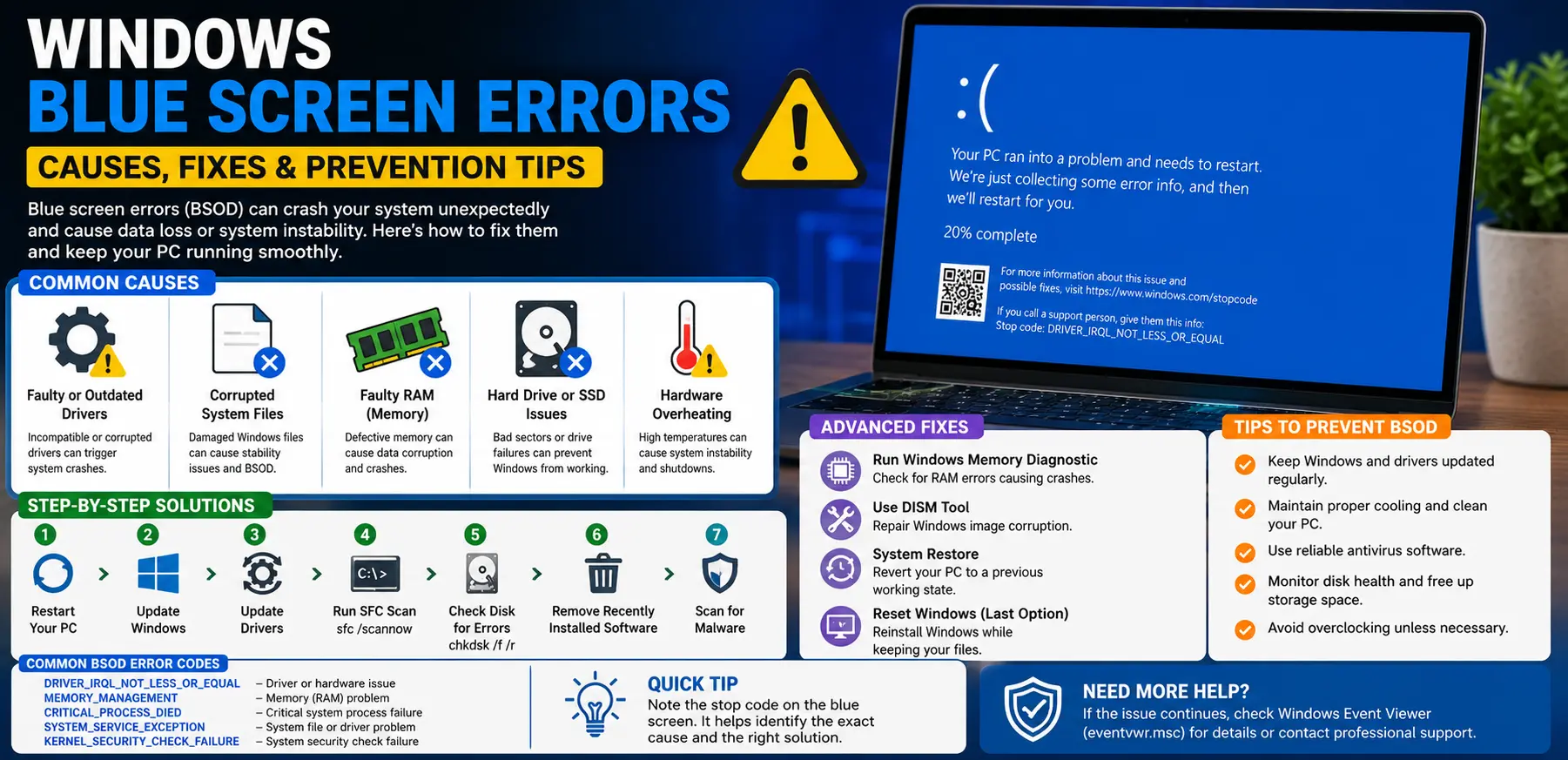
1. Faulty or Outdated Drivers
Device drivers allow Windows to communicate with hardware components such as graphics cards, printers, network adapters, and storage devices.
If a driver becomes corrupted, outdated, or incompatible with the current version of Windows, it can trigger blue screen errors. Driver-related issues are among the most common causes of BSOD crashes.
2. Corrupted System Files
Windows relies on essential system files to function properly. If these files become damaged due to malware, failed updates, or unexpected shutdowns, Windows may crash to prevent further damage.
Corrupted system files often lead to recurring blue screen problems.
3. Faulty RAM (Memory)
Random Access Memory (RAM) temporarily stores data while your computer is running.
Defective memory modules can cause data corruption, application crashes, system freezes, and blue screen errors. Memory problems often become more noticeable when running demanding software.
4. Hard Drive or SSD Issues
Storage devices can develop bad sectors or hardware failures over time.
When Windows cannot properly read or write important system files, the operating system may crash and display a blue screen.
5. Hardware Overheating
Excessive heat can affect the stability of computer components.
Processors, graphics cards, and other hardware may malfunction when temperatures rise too high, causing unexpected crashes and blue screen errors.
Step-by-Step Solutions
Step 1: Note the Error Code
When a blue screen appears, Windows usually displays a stop code such as:
- MEMORY_MANAGEMENT
- CRITICAL_PROCESS_DIED
- SYSTEM_SERVICE_EXCEPTION
- IRQL_NOT_LESS_OR_EQUAL
Write down the code or take a photo. This information can help identify the specific cause of the problem.
Step 2: Restart Your Computer
A temporary system glitch may trigger a one-time blue screen.
- Allow Windows to restart.
- Observe whether the issue happens again.
- Monitor system performance for unusual behavior.
If the error does not return, the issue may have been temporary.
Step 3: Update Windows
Microsoft frequently releases updates that fix stability issues.
To update Windows:
- Open Settings.
- Select Windows Update.
- Click Check for Updates.
- Install available updates.
- Restart the computer.
Updates often resolve compatibility issues that cause BSOD errors.
Step 4: Update Device Drivers
Outdated drivers can create serious system conflicts.
To update drivers:
- Right-click the Start button.
- Open Device Manager.
- Expand hardware categories.
- Right-click a device.
- Select Update Driver.
Focus especially on graphics, storage, chipset, and network drivers.
Step 5: Run System File Checker
The System File Checker tool repairs corrupted Windows files.
Open Command Prompt as Administrator and run:
sfc /scannow
Allow the scan to complete and restart the system afterward.
Step 6: Check for Disk Errors
Storage problems can trigger blue screen crashes.
Open Command Prompt as Administrator and run:
chkdsk C: /f /r
Windows may schedule the scan for the next restart.
The process can identify and repair file system issues.
Step 7: Remove Recently Installed Software
If blue screens started after installing new software:
- Open Settings.
- Select Apps.
- Locate recently installed programs.
- Uninstall suspicious applications.
- Restart the computer.
This can eliminate software conflicts causing crashes.
Advanced Fixes
Run Windows Memory Diagnostic
Faulty RAM is a common source of BSOD errors.
To test memory:
- Press Windows + R.
- Type:
mdsched.exe
- Press Enter.
- Select Restart Now and Check for Problems.
Windows will scan memory for errors during the reboot process.
Use DISM to Repair Windows
The Deployment Image Servicing and Management tool can repair damaged Windows images.
Open Command Prompt as Administrator and run:
DISM /Online /Cleanup-Image /RestoreHealth
After completion:
- Restart the computer.
- Run SFC again for additional repairs.
Check Hardware Temperatures
Overheating can destabilize the system.
Monitor temperatures using trusted hardware monitoring tools.
Common warning signs include:
- Loud fan activity
- Unexpected shutdowns
- Reduced performance
- Frequent crashes during gaming
Cleaning dust and improving airflow can significantly improve stability.
Perform a System Restore
If blue screen errors began recently:
- Search for System Restore.
- Open Recovery Options.
- Select Open System Restore.
- Choose a restore point before the issue began.
- Complete the restoration process.
This can reverse problematic software or driver changes.
Reset Windows
If crashes continue despite troubleshooting, resetting Windows may help.
To reset:
- Open Settings.
- Select System.
- Choose Recovery.
- Click Reset This PC.
- Select Keep My Files.
This reinstalls Windows while preserving personal documents.
Tips to Prevent the Issue
Keep Drivers Updated
Manufacturers regularly release driver updates that improve compatibility and fix bugs.
Check for updates periodically, especially for graphics and chipset drivers.
Maintain Proper Cooling
Dust buildup can increase system temperatures.
Clean vents and cooling fans regularly to ensure proper airflow.
Install Windows Updates
Security patches and bug fixes help improve system stability.
Avoid delaying important Windows updates for extended periods.
Use Reliable Antivirus Protection
Malware infections can corrupt system files and trigger blue screen errors.
Keep antivirus software updated and perform regular scans.
Avoid Overclocking
Overclocking pushes hardware beyond its default specifications.
While it may improve performance, it can also increase instability and cause BSOD crashes.
Monitor Hardware Health
Check storage drives and memory periodically.
Early detection of failing hardware can prevent serious system problems.
FAQs
What causes Windows blue screen errors?
Blue screen errors are commonly caused by driver problems, corrupted system files, faulty RAM, storage device issues, overheating, or hardware failures.
Can a blue screen damage my computer?
The blue screen itself does not damage hardware. However, the underlying issue causing repeated crashes could potentially lead to hardware problems or data loss if left unresolved.
How do I find out what caused the blue screen?
Look for the stop code displayed on the blue screen and review Windows Event Viewer or Reliability Monitor for additional information.
Is faulty RAM a common reason for BSOD errors?
Yes. Defective memory modules are one of the leading causes of recurring blue screen crashes, especially when running demanding applications.
Should I reset Windows if blue screen errors continue?
A reset can help resolve software-related causes. However, it is best to complete other troubleshooting steps first, especially hardware diagnostics.
Conclusion
Windows blue screen errors can be frustrating and sometimes alarming, but they are often caused by issues that can be identified and fixed. Common causes include outdated drivers, corrupted system files, faulty memory, storage problems, and overheating hardware.
Starting with basic troubleshooting steps such as updating Windows, repairing system files, checking drivers, and scanning storage devices can resolve many BSOD issues. For more persistent problems, advanced solutions like memory diagnostics, DISM repairs, System Restore, and Windows Reset may be necessary.
Regular maintenance, proper cooling, updated drivers, and healthy hardware can significantly reduce the likelihood of future blue screen crashes. By following the solutions and preventive measures outlined in this guide, you can improve system stability and keep your Windows computer running smoothly.
- AI Powered Cyber Defense How Artificial Intelligence Strengthens Modern Cybersecurity
- Machine Learning in Cybersecurity How Intelligent Systems Help Detect and Prevent Cyber Threats
- AI in Cybersecurity How Artificial Intelligence Is Transforming Digital Security
- AI Threat Detection How Artificial Intelligence Helps Stop Cyber Threats Before They Cause Damage
- Artificial Intelligence Security Solutions A Practical Guide to Smarter Cyber Protection
