
Introduction
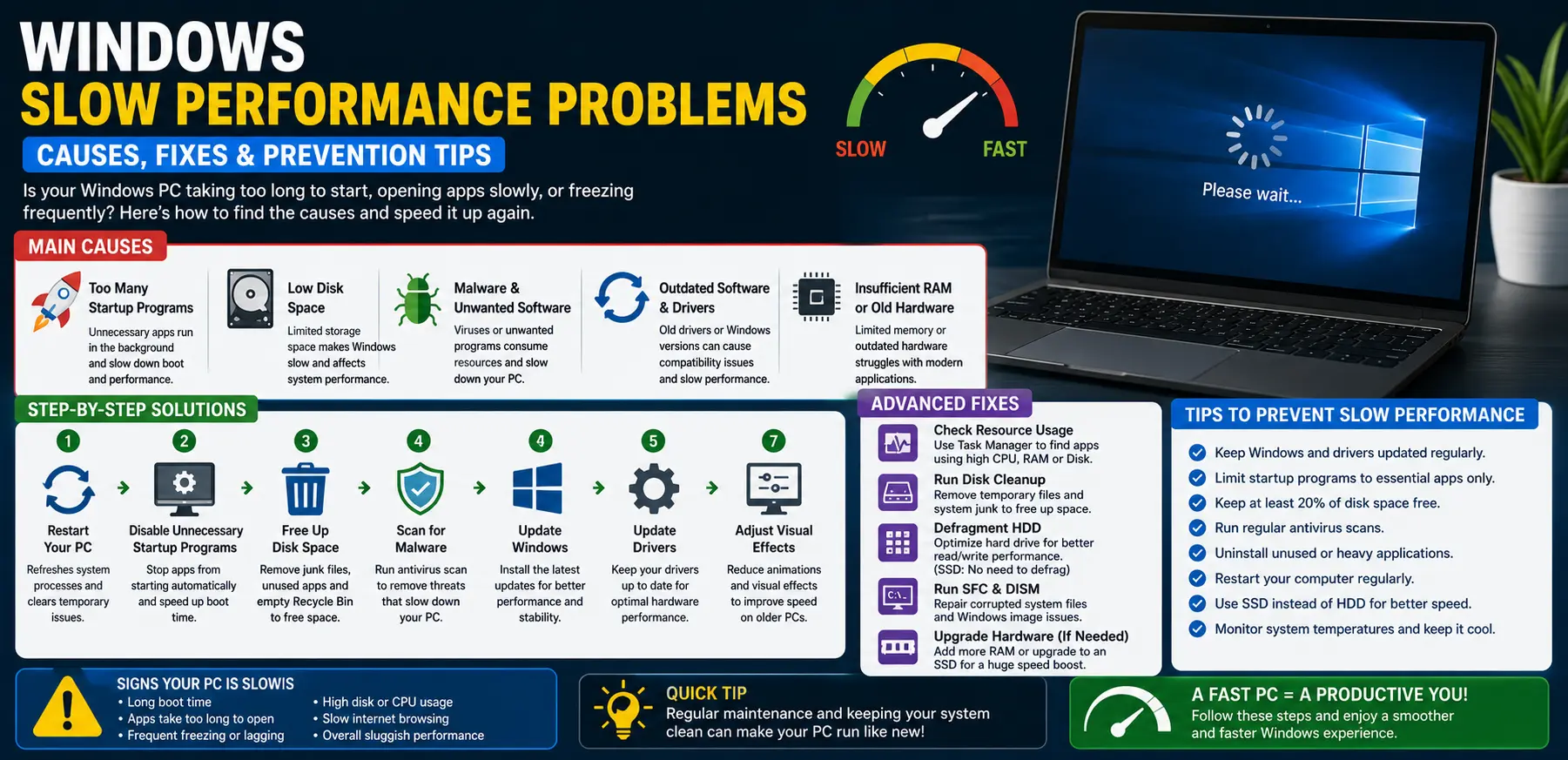
Windows slow performance problems are among the most common complaints computer users face. A computer that once started quickly and ran smoothly may gradually become sluggish, taking longer to open programs, load files, browse the internet, or perform basic tasks.
FOR MORE SOLUTIONS VISIT
Slow performance can affect productivity, gaming, online learning, and everyday work. Even simple actions such as opening a web browser or switching between applications can become frustrating when a computer responds slowly.
The good news is that most Windows performance issues are not caused by serious hardware failures. In many cases, the problem can be traced to startup programs, insufficient storage, outdated software, malware, or system settings. By identifying the root cause and applying the right fixes, you can often restore your computer’s speed without spending money on new hardware.
This guide explains the most common causes of Windows slow performance problems and provides practical solutions that beginners can easily follow.
Main Causes of Windows Slow Performance Problems
1. Too Many Startup Programs
Many applications automatically launch when Windows starts.
While a few startup programs are normal, having dozens of apps loading in the background can significantly increase boot times and reduce overall performance. Programs such as messaging apps, cloud storage tools, and software updaters often run without users realizing it.
2. Low Available Storage Space
Windows needs free disk space to operate efficiently.
When your storage drive becomes nearly full, the operating system has less room for temporary files, updates, and virtual memory. This can cause slower performance, application delays, and longer loading times.
3. Malware and Unwanted Software
Viruses, spyware, adware, and potentially unwanted programs can consume system resources in the background.
Some malicious applications constantly use CPU power, memory, and internet bandwidth, causing noticeable slowdowns.
4. Outdated Software and Drivers
Old versions of Windows, outdated drivers, and unsupported applications can create compatibility issues and performance problems.
Manufacturers frequently release updates that improve efficiency, fix bugs, and optimize hardware performance.
5. Insufficient RAM or Aging Hardware
Modern applications require more memory and processing power than older software.
If your computer has limited RAM or an older processor, running multiple programs simultaneously may cause noticeable slowdowns.
Step-by-Step Solutions
Step 1: Restart Your Computer
A simple restart can clear temporary files, refresh system processes, and close background applications.
To restart:
- Click the Start menu.
- Select Power.
- Click Restart.
If your computer has been running continuously for days or weeks, a restart can often improve responsiveness.
Step 2: Disable Unnecessary Startup Programs
Reducing startup programs can improve boot speed and system performance.
To manage startup apps:
- Press Ctrl + Shift + Esc to open Task Manager.
- Select the Startup tab.
- Review the list of programs.
- Disable apps you do not need immediately after startup.
Be careful not to disable essential system processes.
Step 3: Free Up Storage Space
Removing unnecessary files can significantly improve performance.
To free space:
- Open Settings.
- Select System.
- Click Storage.
- Review storage usage.
- Delete temporary files.
- Empty the Recycle Bin.
- Remove unused applications.
Aim to keep at least 15–20% of your storage drive free.
Step 4: Scan for Malware
Malware can severely impact computer performance.
To run a scan:
- Open Windows Security.
- Select Virus & Threat Protection.
- Click Quick Scan or Full Scan.
- Remove any detected threats.
Regular scans help keep the system clean and efficient.
Step 5: Update Windows
Windows updates often include performance improvements and bug fixes.
To check for updates:
- Open Settings.
- Select Windows Update.
- Click Check for Updates.
- Install available updates.
- Restart the computer.
Keeping Windows current improves stability and performance.
Step 6: Update Device Drivers
Updated drivers can improve hardware efficiency.
To update drivers:
- Right-click the Start button.
- Open Device Manager.
- Expand hardware categories.
- Right-click a device.
- Select Update Driver.
Focus especially on graphics, storage, chipset, and network drivers.
Step 7: Adjust Visual Effects
Windows includes visual animations that consume system resources.
To optimize performance:
- Search for Advanced System Settings.
- Open Performance Settings.
- Select Adjust for Best Performance.
- Apply the changes.
This can noticeably improve speed on older computers.
Advanced Fixes
Check Resource Usage in Task Manager
Task Manager helps identify programs consuming excessive resources.
To check:
- Press Ctrl + Shift + Esc.
- Open the Processes tab.
- Sort by CPU, Memory, or Disk usage.
- Identify applications using unusually high resources.
Closing problematic applications may improve performance immediately.
Run Disk Cleanup
Disk Cleanup removes temporary and unnecessary system files.
To use it:
- Search for Disk Cleanup.
- Select your system drive.
- Choose files to remove.
- Run the cleanup process.
This can recover significant storage space.
Defragment a Hard Drive
If your computer uses a traditional HDD rather than an SSD, disk fragmentation can affect performance.
To optimize:
- Search for Defragment and Optimize Drives.
- Select the hard drive.
- Click Optimize.
Note: SSDs should not be manually defragmented.
Check System Files
Corrupted system files can reduce performance.
Open Command Prompt as Administrator and run:
sfc /scannow
This tool scans and repairs damaged Windows files.
Run DISM Repair
For deeper system repairs:
Open Command Prompt as Administrator and run:
DISM /Online /Cleanup-Image /RestoreHealth
After completion, restart the computer and run SFC again.
Upgrade Hardware
If your system still performs poorly despite optimization, hardware upgrades may help.
The most effective upgrades include:
- Replacing an HDD with an SSD
- Increasing RAM capacity
- Upgrading older storage devices
These improvements often provide substantial performance gains.
Tips to Prevent the Issue
Keep Windows Updated
Regular updates help maintain performance, security, and stability.
Enable automatic updates whenever possible.
Limit Startup Applications
Only allow essential programs to launch automatically during startup.
Fewer startup programs result in faster boot times.
Perform Regular Malware Scans
Routine security scans help detect threats before they affect system performance.
Use trusted security software and keep it updated.
Remove Unused Software
Programs you no longer use continue to consume storage space and may run background services.
Review installed applications periodically and uninstall unnecessary ones.
Monitor Storage Space
Avoid filling your storage drive completely.
Maintaining adequate free space helps Windows operate efficiently.
Restart Your Computer Regularly
Frequent restarts help clear temporary system processes and memory usage.
This simple habit can improve overall responsiveness.
FAQs
Why has my Windows computer become slower over time?
Slowdowns often occur due to accumulated files, startup programs, outdated software, malware, insufficient storage space, or aging hardware.
Does upgrading RAM improve performance?
Yes. Additional RAM can significantly improve multitasking and overall responsiveness, especially on systems with limited memory.
Will resetting Windows make my computer faster?
In many cases, yes. Resetting Windows removes software-related issues and restores system files, often improving performance.
Is an SSD faster than a traditional hard drive?
Yes. SSDs are considerably faster than HDDs and can dramatically improve startup times, application loading, and system responsiveness.
How often should I perform system maintenance?
Basic maintenance such as updates, malware scans, and storage cleanup should be performed at least once a month to maintain optimal performance.
Conclusion
Windows slow performance problems can be frustrating, but they are often caused by issues that can be fixed without replacing your computer. Startup programs, limited storage space, malware, outdated software, and hardware limitations are among the most common reasons a Windows PC becomes sluggish.
Starting with simple solutions such as restarting the computer, freeing storage space, disabling unnecessary startup programs, and updating Windows can significantly improve performance. Advanced tools like Disk Cleanup, System File Checker, DISM repairs, and hardware upgrades can provide additional improvements when needed.
Regular maintenance, good security practices, and keeping your system updated will help prevent future slowdowns. By following the steps outlined in this guide, you can keep your Windows computer running faster, smoother, and more efficiently for years to come.
- AI Powered Cyber Defense How Artificial Intelligence Strengthens Modern Cybersecurity
- Machine Learning in Cybersecurity How Intelligent Systems Help Detect and Prevent Cyber Threats
- AI in Cybersecurity How Artificial Intelligence Is Transforming Digital Security
- AI Threat Detection How Artificial Intelligence Helps Stop Cyber Threats Before They Cause Damage
- Artificial Intelligence Security Solutions A Practical Guide to Smarter Cyber Protection
