
Introduction
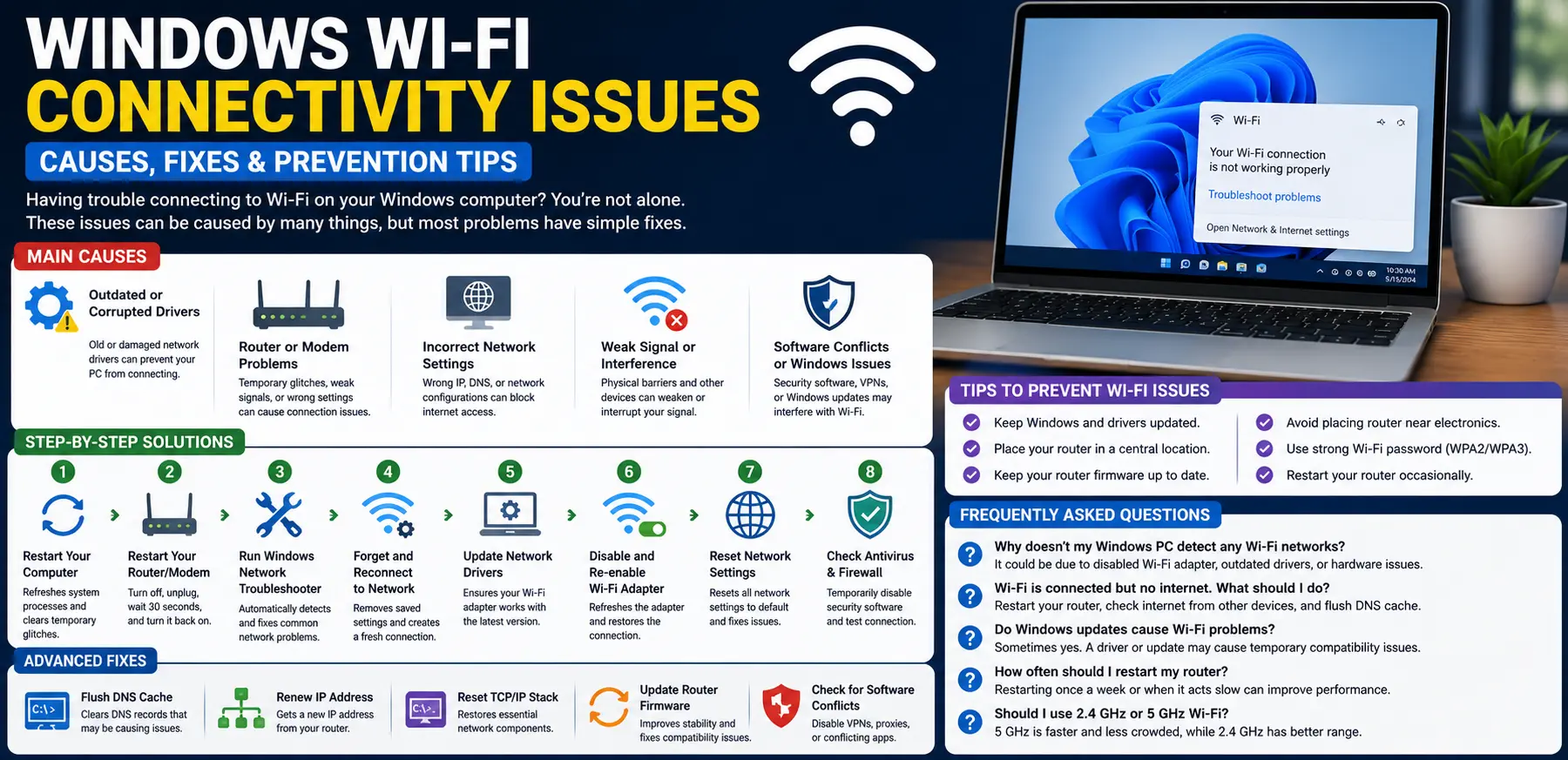
Windows Wi-Fi connectivity issues can be incredibly frustrating, especially when you depend on a stable internet connection for work, online classes, video calls, gaming, streaming, or browsing the web. One moment your connection works perfectly, and the next your computer refuses to connect, disconnects frequently, or shows a “No Internet Access” message.
FOR MORE SOLUTIONS VISIT
These problems can occur on both desktop computers and laptops running Windows 10 or Windows 11. The causes range from simple network glitches to driver problems, router issues, incorrect settings, or software conflicts.
The good news is that most Wi-Fi problems can be fixed without professional help. By understanding what causes these issues and following the right troubleshooting steps, you can often restore your internet connection quickly and prevent future disruptions.
This guide explains the most common causes of Windows Wi-Fi connectivity issues and provides practical solutions that are easy for beginners to follow.
Main Causes of Windows Wi-Fi Connectivity Issues
1. Outdated or Corrupted Network Drivers
Network drivers allow Windows to communicate with your Wi-Fi adapter.
If these drivers become outdated, corrupted, or incompatible with recent Windows updates, your connection may become unstable or stop working entirely.
Common symptoms include:
- Frequent disconnections
- Slow internet speeds
- Failure to detect available networks
- Connection errors after updates
2. Router or Modem Problems
Sometimes the issue is not with your computer at all.
Routers and modems can experience temporary glitches, overheating, firmware issues, or configuration problems that interrupt internet access.
A router that has been running continuously for weeks may occasionally need a restart to function properly.
3. Incorrect Network Settings
Network settings stored within Windows can become corrupted over time.
Incorrect DNS settings, IP address conflicts, or damaged network configurations may prevent successful connections even when the Wi-Fi network itself is functioning normally.
4. Signal Interference and Weak Coverage
Physical obstacles and electronic devices can weaken Wi-Fi signals.
Common sources of interference include:
- Thick walls
- Microwaves
- Bluetooth devices
- Wireless speakers
- Neighboring Wi-Fi networks
Weak signals often cause slow speeds and dropped connections.
5. Windows Updates or Software Conflicts
Certain Windows updates, third-party security software, VPN applications, or firewall settings can occasionally interfere with network connectivity.
These conflicts may appear suddenly after installing new software or updates.
Step-by-Step Solutions
Step 1: Restart Your Computer
A simple restart often resolves temporary network glitches.
To restart:
- Click the Start menu.
- Select Power.
- Click Restart.
- Wait for Windows to reload.
After restarting, test the Wi-Fi connection again.
Step 2: Restart Your Router and Modem
Network equipment occasionally needs a refresh.
Follow these steps:
- Turn off the router and modem.
- Unplug them from power.
- Wait 30 seconds.
- Plug them back in.
- Allow several minutes for startup.
Reconnect your computer and test internet access.
Step 3: Run the Windows Network Troubleshooter
Windows includes a built-in diagnostic tool.
To use it:
- Open Settings.
- Select System.
- Click Troubleshoot.
- Choose Other Troubleshooters.
- Run Network and Internet Troubleshooter.
Windows will automatically search for and fix common network issues.
Step 4: Forget and Reconnect to the Network
Saved network profiles can sometimes become corrupted.
To reconnect:
- Open Settings.
- Select Network & Internet.
- Click Wi-Fi.
- Choose Manage Known Networks.
- Select your Wi-Fi network.
- Click Forget.
- Reconnect by entering the password again.
This creates a fresh network profile.
Step 5: Check Airplane Mode
Airplane Mode disables wireless communications.
To verify:
- Open Quick Settings.
- Ensure Airplane Mode is turned off.
- Confirm Wi-Fi is enabled.
Even accidental activation can prevent internet access.
Step 6: Update Network Drivers
Updated drivers often resolve connectivity issues.
To update:
- Right-click the Start button.
- Open Device Manager.
- Expand Network Adapters.
- Right-click your Wi-Fi adapter.
- Select Update Driver.
- Follow the prompts.
Restart the computer after updating.
Step 7: Disable and Re-enable the Wi-Fi Adapter
Refreshing the adapter can restore connectivity.
To do this:
- Open Device Manager.
- Expand Network Adapters.
- Right-click the Wi-Fi adapter.
- Select Disable Device.
- Wait a few seconds.
- Enable the device again.
Test the connection afterward.
Advanced Fixes
Reset Network Settings
If basic solutions fail, resetting network settings may help.
To reset:
- Open Settings.
- Select Network & Internet.
- Choose Advanced Network Settings.
- Click Network Reset.
- Confirm the reset.
- Restart the computer.
Windows will reinstall network adapters and restore default settings.
Flush DNS Cache
A corrupted DNS cache can interfere with internet access.
Open Command Prompt as Administrator and run:
ipconfig /flushdns
You should receive a confirmation message indicating the cache was cleared successfully.
Renew IP Configuration
To obtain a fresh IP address, run:
ipconfig /release
ipconfig /renew
This can resolve IP conflicts and connection issues.
Reset TCP/IP Stack
TCP/IP is a core networking component in Windows.
To reset it:
netsh int ip reset
Restart the computer after the command completes.
Temporarily Disable Antivirus or Firewall
Security software occasionally blocks network communication.
Temporarily disable:
- Third-party antivirus software
- Third-party firewalls
- VPN applications
Test connectivity afterward and re-enable protection once troubleshooting is complete.
Update Router Firmware
Outdated router firmware can cause compatibility issues.
Visit your router manufacturer’s website and install the latest firmware version if available.
Firmware updates often improve performance, security, and stability.
Tips to Prevent the Issue
Keep Network Drivers Updated
Manufacturers regularly release updates that improve compatibility and fix connection bugs.
Check for driver updates periodically.
Place Your Router Properly
For better coverage:
- Position the router centrally
- Keep it elevated
- Avoid placing it near thick walls
- Keep it away from electronic interference
Better placement improves signal strength throughout the home.
Install Windows Updates Regularly
Microsoft frequently releases network-related fixes and stability improvements.
Keeping Windows updated helps prevent many connectivity problems.
Secure Your Wi-Fi Network
Use strong passwords and WPA2 or WPA3 encryption.
Secure networks reduce unauthorized access and improve performance.
Restart Network Equipment Occasionally
Restarting your router every few weeks can clear temporary errors and maintain stable performance.
Avoid Excessive Background Downloads
Large downloads and multiple connected devices can consume bandwidth and reduce network performance.
Monitor network usage to maintain stable speeds.
FAQs
Why does my Windows computer keep disconnecting from Wi-Fi?
Frequent disconnections may be caused by weak signals, outdated drivers, router problems, interference, or power management settings affecting the network adapter.
Why is Wi-Fi connected but there is no internet access?
This often indicates a router, modem, DNS, or internet service provider issue rather than a problem with the Wi-Fi connection itself.
Can Windows updates cause Wi-Fi problems?
Occasionally, yes. Some updates may introduce temporary driver compatibility issues that affect wireless connectivity until updates or driver fixes are installed.
How do I know if my Wi-Fi adapter is failing?
Common signs include frequent disconnections, inability to detect networks, poor signal reception, or connection failures across multiple networks.
Should I reset network settings?
Yes. Network Reset is a safe troubleshooting step that often resolves persistent connectivity issues by restoring default network configurations.
Conclusion
Windows Wi-Fi connectivity issues can occur for many reasons, including outdated drivers, router problems, weak signals, incorrect network settings, and software conflicts. Although these problems can be frustrating, most can be resolved using straightforward troubleshooting methods.
Starting with simple fixes such as restarting your computer, rebooting the router, reconnecting to the network, and updating drivers often restores connectivity quickly. For more persistent issues, advanced solutions such as network resets, DNS flushing, IP renewal, and TCP/IP repairs can provide additional help.
Regular maintenance, updated software, strong network security, and proper router placement can significantly reduce the chances of future Wi-Fi problems. By following the solutions and preventive tips in this guide, you can maintain a faster, more reliable wireless connection and enjoy a smoother Windows experience.
- AI Powered Cyber Defense How Artificial Intelligence Strengthens Modern Cybersecurity
- Machine Learning in Cybersecurity How Intelligent Systems Help Detect and Prevent Cyber Threats
- AI in Cybersecurity How Artificial Intelligence Is Transforming Digital Security
- AI Threat Detection How Artificial Intelligence Helps Stop Cyber Threats Before They Cause Damage
- Artificial Intelligence Security Solutions A Practical Guide to Smarter Cyber Protection
