
Introduction
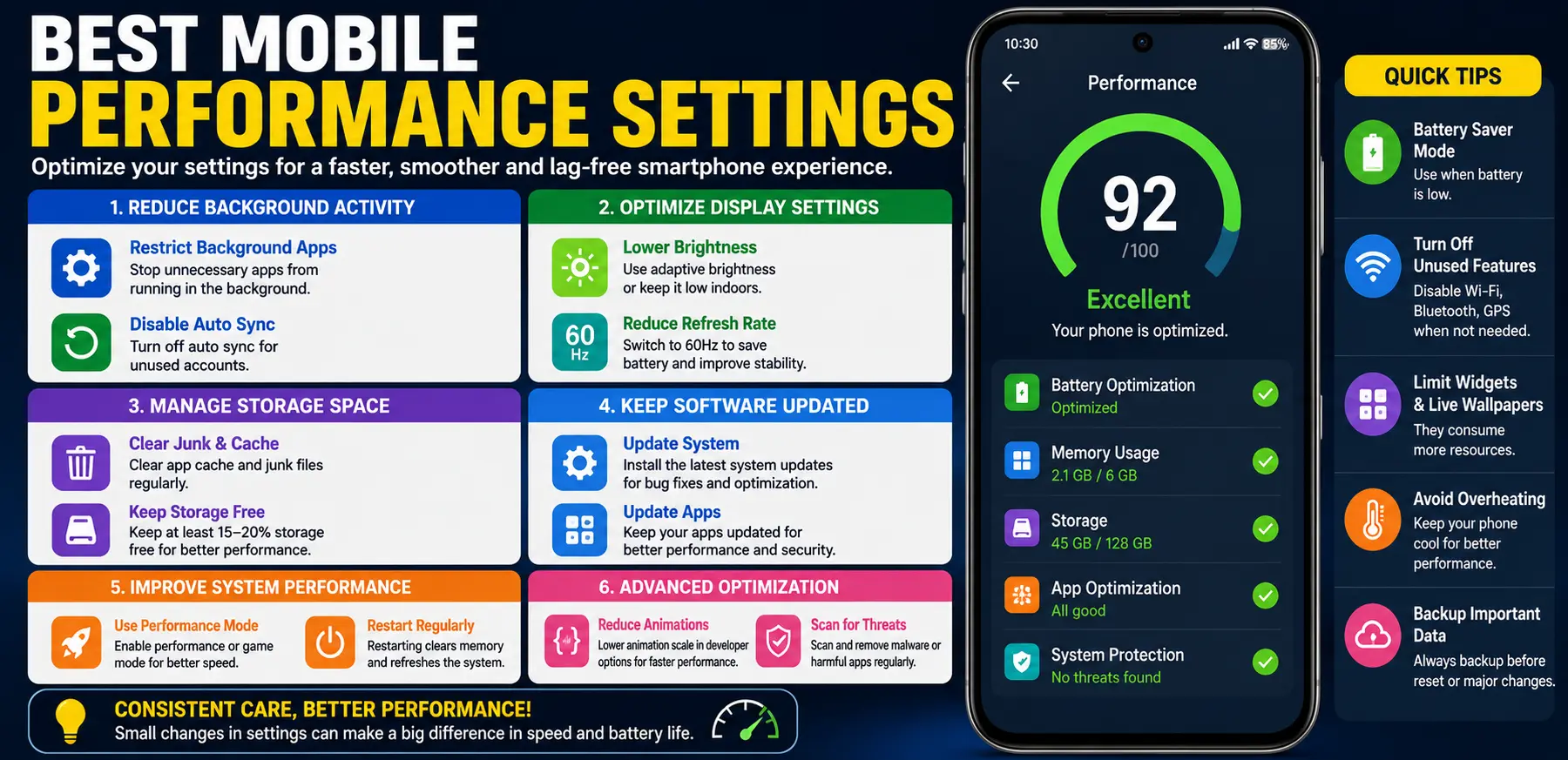
A slow smartphone can make everyday tasks frustrating. Apps take longer to open, games lag, videos buffer, and even basic scrolling may feel delayed. Over time, many phones lose their smooth performance because of overloaded settings, background activity, and poor optimization.
FOR MORE SOLUTIONS VISIT
Most users think performance problems only happen on old devices, but even newer smartphones can become slow if the settings are not managed properly. Features like high refresh rates, unnecessary animations, automatic syncing, and heavy background apps can reduce speed and battery efficiency.
The good news is that you do not always need a new phone to fix performance issues. Adjusting the right settings can make a noticeable difference in speed, responsiveness, and battery life.
This guide explains the best mobile performance settings that help improve smartphone speed and overall user experience for both Android and iPhone devices.
Main Causes of Poor Mobile Performance
1. Too Many Background Processes
Many apps continue running in the background even after they are closed. These apps consume RAM, processing power, and battery life.
Social media apps, cloud storage services, and messaging apps are common examples of background-heavy applications.
2. Full Storage Space
When phone storage becomes nearly full, the system struggles to manage temporary files and app data efficiently.
Low storage can cause:
- Slow app loading
- System lag
- Freezing
- Failed updates
3. High Display Settings
Features like:
- Maximum brightness
- High refresh rates
- Live wallpapers
- Constant animations
can make phones work harder and reduce performance, especially on mid-range or older devices.
4. Outdated Software
Older software versions may contain bugs, security issues, or poor optimization that slow down the device.
Manufacturers release updates regularly to improve performance and system stability.
5. Poorly Optimized Apps
Some apps use excessive memory and processing power. Heavy gaming apps, poorly coded utilities, and unnecessary widgets can slow down overall performance.
Step-by-Step Solutions
Reduce Background App Activity
Disable Background Processes
Restrict unnecessary apps from running constantly.
On Android:
- Open Settings
- Go to Apps
- Select an app
- Tap Battery
- Choose Restricted
On iPhone:
- Open Settings
- Tap General
- Select Background App Refresh
- Turn it off for unnecessary apps
This frees RAM and improves speed.
Clear Storage Space
Remove Unused Files
Delete:
- Duplicate photos
- Old videos
- Downloads
- Unused documents
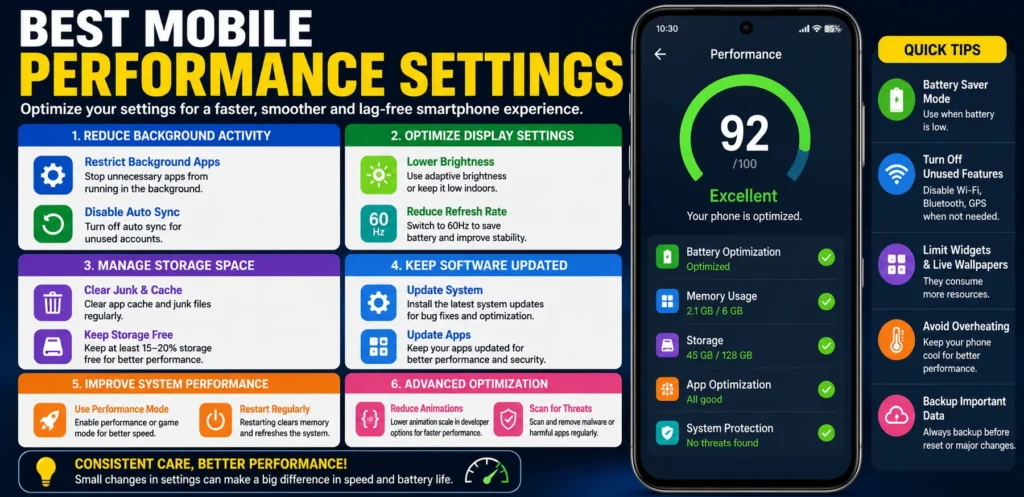
Keeping at least 15–20% of storage free helps the system operate smoothly.
Uninstall Unused Apps
Many users keep apps they rarely use. Removing unnecessary apps reduces background activity and improves performance.
Focus on deleting:
- Unused games
- Shopping apps
- Temporary editing tools
- Old social media apps
Optimize Display Settings
Lower Refresh Rate
Many smartphones support 90Hz or 120Hz displays. While smoother scrolling looks great, it also uses more battery and processing power.
Switching to 60Hz can improve performance stability and battery life.
Reduce Screen Brightness
High brightness increases battery drain and heat generation.
Use:
- Adaptive brightness
- Manual low brightness indoors
This helps reduce system stress.
Disable Live Wallpapers
Animated wallpapers constantly use processing power and battery.
Using a simple static wallpaper improves efficiency.
Update System Software
Install Latest Updates
Phone manufacturers often release updates that:
- Improve performance
- Fix bugs
- Optimize battery usage
- Improve app compatibility
Always keep the operating system updated.
Update Apps Regularly
Outdated apps may cause crashes, overheating, or slow performance.
Enable automatic updates for important apps.
Restart Your Phone Regularly
Restarting clears temporary processes and refreshes memory usage.
A quick restart every few days can:
- Improve speed
- Reduce lag
- Refresh system resources
Enable Built-In Performance Modes
Many Android devices include:
- Performance Mode
- Game Mode
- Device Care
- RAM optimization tools
These settings automatically improve speed and reduce background activity.
Check your phone’s battery or device care section for available options.
Advanced Fixes
Clear Cached Data
Apps store cache files to load content faster. Over time, these files may become large or corrupted.
On Android:
- Open Settings
- Tap Storage
- Select cached data
- Clear cache
Avoid deleting app data unless necessary.
Reduce System Animations
Animations make the interface look smoother but may slow older devices.
On Android:
- Enable Developer Options
- Reduce animation scale settings
This makes menus and apps open faster.
Disable Auto Sync for Unused Accounts
Email, cloud storage, and social media accounts constantly sync in the background.
Disable syncing for accounts you rarely use.
This reduces:
- Battery usage
- RAM usage
- Background activity
Scan for Malware or Harmful Apps
Some suspicious apps consume excessive resources secretly.
Use trusted security tools to scan your device occasionally.
Avoid downloading apps from unknown sources.
Factory Reset as a Last Option
If your phone remains slow after trying everything else, a factory reset may help restore performance.
Before resetting:
- Backup important files
- Save passwords
- Sync contacts
A clean reset removes clutter and hidden software problems.
Tips to Prevent Mobile Performance Issues
Avoid Installing Too Many Apps
Every app uses system resources, even when not actively used.
Install only apps you truly need.
Keep Storage Organized
Regularly clean:
- Downloads
- Screenshots
- Duplicate files
- Unused media
Good storage management improves long-term performance.
Avoid Overheating
Heat reduces processing efficiency and affects battery health.
Avoid:
- Gaming while charging
- Direct sunlight exposure
- Using low-quality chargers
Use Trusted Apps Only
Poor-quality apps may contain:
- Ads running constantly
- Hidden background services
- Excessive permissions
Always install apps from official stores.
Restart and Maintain Your Device
Simple habits like restarting the phone, clearing cache, and updating apps help maintain smooth performance over time.
Preventive care is easier than fixing severe lag later.
FAQs
Why is my phone suddenly slow?
Phones may become slow because of low storage, background apps, outdated software, or overheating.
Does clearing cache improve performance?
Yes. Clearing cache can free storage space and remove corrupted temporary files that slow apps down.
Is high refresh rate bad for performance?
High refresh rates improve smoothness but consume more battery and system resources. Lowering the refresh rate can improve stability and battery life.
How much free storage should I keep on my phone?
Keeping at least 15–20% of storage free helps phones run more smoothly and reduces lag.
Will a factory reset make my phone faster?
In many cases, yes. A factory reset removes unnecessary files, hidden bugs, and system clutter that may slow the device down.
Conclusion
Smartphone performance problems are common, but most can be fixed with the right settings and maintenance habits. Managing background apps, freeing storage space, lowering unnecessary display settings, and keeping software updated can greatly improve speed and responsiveness.
The best mobile performance settings are not complicated. Small adjustments made consistently can help your phone feel faster, smoother, and more reliable without spending money on a new device.
Regular maintenance and smart usage habits will also help extend the life of your smartphone and keep it performing well for years.
- AI Powered Cyber Defense How Artificial Intelligence Strengthens Modern Cybersecurity
- Machine Learning in Cybersecurity How Intelligent Systems Help Detect and Prevent Cyber Threats
- AI in Cybersecurity How Artificial Intelligence Is Transforming Digital Security
- AI Threat Detection How Artificial Intelligence Helps Stop Cyber Threats Before They Cause Damage
- Artificial Intelligence Security Solutions A Practical Guide to Smarter Cyber Protection
