
Introduction
Battery drain is one of the most common smartphone problems users face every day. You charge your phone fully in the morning, but the battery percentage drops quickly after only a few hours of normal use. This becomes frustrating when you rely on your phone for work, navigation, communication, entertainment, or online payments.
FOR MORE SOLUTIONS VISIT
Fast battery drain can interrupt important tasks and force users to carry chargers or power banks everywhere. In many cases, the issue is not caused by a damaged phone. Instead, background apps, poor settings, outdated software, and unhealthy charging habits are usually responsible.
The good news is that most battery problems can be fixed without replacing the device. A few simple changes can improve battery performance and help your smartphone last much longer throughout the day.
This guide explains practical battery drain fix for smartphones using beginner-friendly steps that work on both Android and iPhone devices.
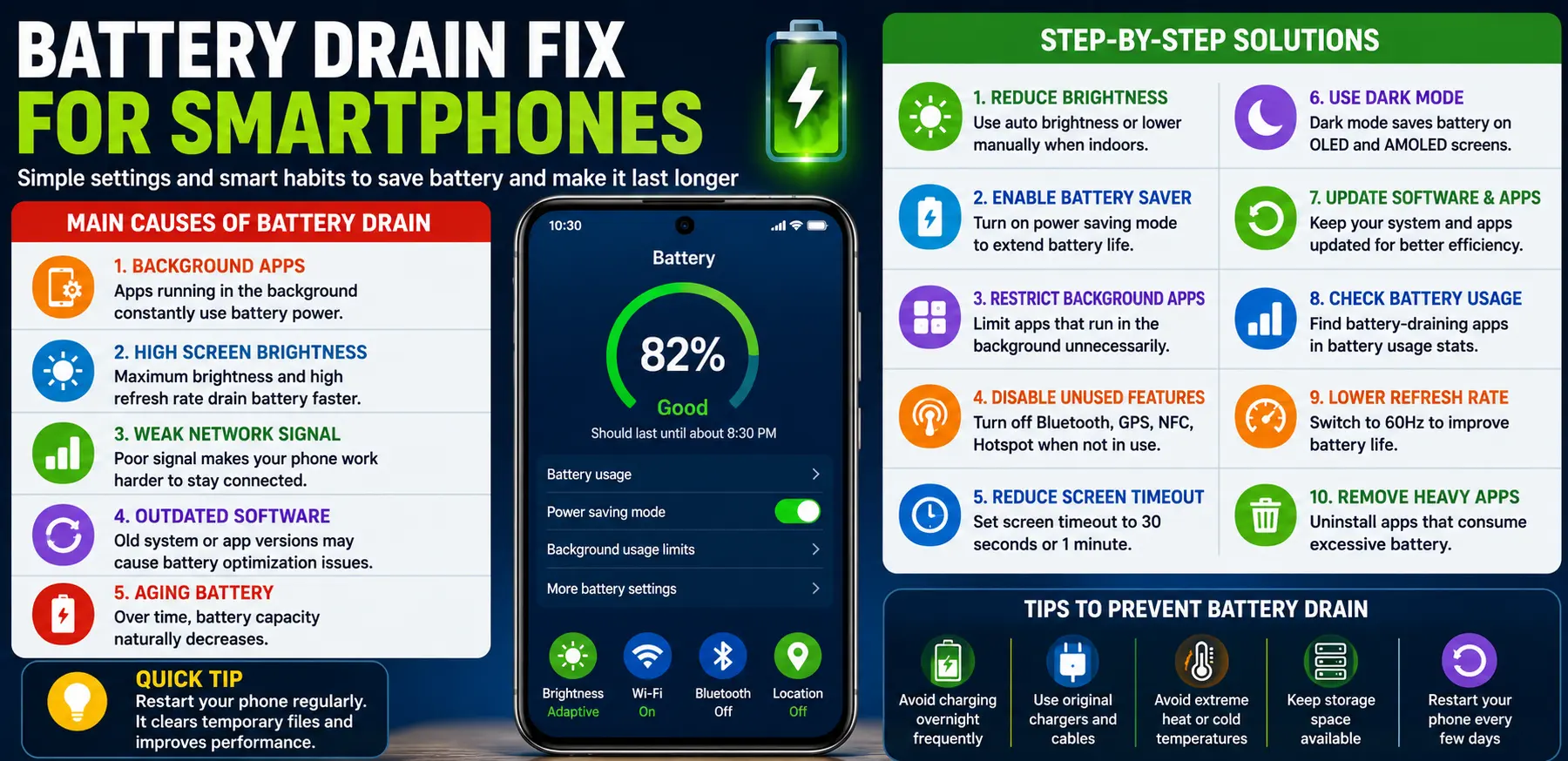
Main Causes of Smartphone Battery Drain
1. Background Apps Running Constantly
Many apps continue working in the background even after you stop using them. Social media apps, messaging apps, cloud storage services, and navigation tools constantly refresh data.
This continuous activity consumes battery power throughout the day.
2. High Screen Brightness
The display is one of the biggest battery consumers on any smartphone. Keeping brightness at maximum or using high refresh rate settings drains the battery faster.
Large screens and OLED displays can consume even more power during heavy usage.
3. Weak Mobile or Wi-Fi Signal
When signal strength is poor, your phone works harder to maintain a connection. This increases battery usage significantly.
Battery drain becomes worse in:
- Underground areas
- Elevators
- Remote locations
- Buildings with poor reception
4. Outdated Software or Apps
Old software versions may contain bugs that affect battery optimization.
Manufacturers and app developers regularly release updates to improve:
- Battery efficiency
- Performance
- Security
- Thermal management
Ignoring updates may lead to unnecessary battery drain.
5. Aging Battery Health
Smartphone batteries lose capacity naturally over time. After years of use, batteries cannot hold the same amount of charge they once did.
Common signs include:
- Rapid battery drain
- Overheating
- Sudden shutdowns
- Slow charging
Step-by-Step Solutions
Reduce Screen Brightness
Enable Auto Brightness
Adaptive brightness automatically adjusts the display based on surrounding light conditions.
To enable it:
- Open Settings
- Go to Display
- Turn on Adaptive Brightness
This reduces unnecessary battery usage.
Lower Brightness Manually
Indoors, phones usually do not need maximum brightness. Lower brightness settings can noticeably improve battery life.
Turn On Battery Saver Mode
Most smartphones include built-in battery saver features.
Battery Saver Mode helps by:
- Limiting background activity
- Reducing visual effects
- Lowering processing activity
- Extending battery life
Use this feature during travel or when battery percentage becomes low.
Restrict Background Apps
On Android
- Open Settings
- Tap Apps
- Select an app
- Go to Battery
- Choose Restricted
On iPhone
- Open Settings
- Tap General
- Select Background App Refresh
- Turn it off for unnecessary apps
Restricting background activity improves both battery life and performance.
Disable Unused Features
Several smartphone features consume battery even when not actively used.
Turn off:
- Bluetooth
- GPS
- NFC
- Mobile hotspot
- AirDrop
- Nearby Share
Disable these features when they are not needed.
Reduce Screen Timeout
Screen timeout controls how long the display stays active after inactivity.
Setting screen timeout to:
- 30 seconds
- 1 minute
can save a significant amount of battery throughout the day.
Use Dark Mode
Dark mode helps reduce battery consumption on OLED and AMOLED displays because darker pixels use less power.
Dark mode also:
- Reduces eye strain
- Improves nighttime viewing
- Helps extend battery life
Update Software and Apps
Install System Updates
Phone manufacturers regularly improve battery optimization through software updates.
Install updates to:
- Fix bugs
- Improve efficiency
- Improve app compatibility
Update Apps
Outdated apps may use more battery because of bugs or poor optimization.
Enable automatic app updates if possible.
Advanced Fixes
Check Battery Usage Statistics
Most smartphones allow users to see which apps consume the most battery.
On Android
- Open Settings
- Tap Battery
- View Battery Usage
On iPhone
- Open Settings
- Tap Battery
- Check app activity
This helps identify battery-draining apps quickly.
Disable High Refresh Rate
Many modern phones use:
- 90Hz
- 120Hz
- 144Hz
refresh rates for smoother scrolling.
Lowering refresh rate to 60Hz can improve battery life noticeably.
Remove Battery-Heavy Apps
Some apps are poorly optimized and constantly consume power.
Common examples include:
- Social media apps
- Live wallpaper apps
- Certain games
- Video streaming apps
If an app uses excessive battery, consider uninstalling it or replacing it with a lighter alternative.
Avoid Overheating
Heat damages battery health and reduces efficiency.
Avoid:
- Gaming while charging
- Using the phone in direct sunlight
- Charging under pillows or blankets
- Cheap chargers
Allow the phone to cool down if it becomes hot.
Replace Old Batteries
If battery health is severely degraded, replacing the battery may restore normal performance.
On iPhone
- Open Settings
- Tap Battery
- Select Battery Health
Some Android brands also provide battery health information.
Factory Reset as a Last Resort
If battery drain continues after trying everything else, a factory reset may help remove hidden software problems.
Before resetting:
- Backup important files
- Save passwords
- Sync contacts
A clean system often improves battery performance.
Tips to Prevent Future Battery Drain
Avoid Charging Overnight Frequently
Keeping the battery at 100% for long hours repeatedly may increase long-term battery wear.
Charging between 20% and 80% is generally healthier for lithium-ion batteries.
Use Original Chargers
Low-quality chargers may:
- Damage battery health
- Cause overheating
- Deliver unstable power
Always use trusted charging accessories.
Restart Your Phone Regularly
Restarting clears temporary processes and refreshes system performance.
A restart every few days can help improve efficiency.
Keep Storage Space Available
Phones with nearly full storage may work harder and consume more power.
Delete:
- Unused apps
- Old media files
- Duplicate photos
- Large downloads
Avoid Extreme Temperatures
Very hot or cold conditions affect battery performance negatively.
Keep your phone away from:
- Hot cars
- Direct sunlight
- Freezing temperatures
FAQs
Why is my smartphone battery draining so fast?
Fast battery drain is usually caused by background apps, high brightness, poor network signal, outdated software, or aging batteries.
Does dark mode really save battery?
Yes. Dark mode helps reduce battery usage on OLED and AMOLED displays because dark pixels consume less power.
Is fast charging harmful to battery health?
Modern fast charging is generally safe, but excessive heat during charging may reduce battery lifespan over time.
How long should a smartphone battery last?
Most smartphone batteries maintain good performance for around 2–3 years depending on usage and charging habits.
Can replacing the battery improve phone performance?
Yes. A new battery can improve battery life, reduce overheating, and sometimes improve device performance.
Conclusion
Battery problems can make even a powerful smartphone frustrating to use. Fortunately, most battery drain issues can be fixed with simple changes and better maintenance habits.
Reducing background activity, lowering brightness, disabling unnecessary features, and updating software are some of the most effective ways to improve battery life. Advanced fixes like checking battery usage, reducing refresh rate, and replacing old batteries can provide even better results.
Following these battery drain fix for smartphones tips can help your device last longer throughout the day while improving overall performance and reliability.
- AI Powered Cyber Defense How Artificial Intelligence Strengthens Modern Cybersecurity
- Machine Learning in Cybersecurity How Intelligent Systems Help Detect and Prevent Cyber Threats
- AI in Cybersecurity How Artificial Intelligence Is Transforming Digital Security
- AI Threat Detection How Artificial Intelligence Helps Stop Cyber Threats Before They Cause Damage
- Artificial Intelligence Security Solutions A Practical Guide to Smarter Cyber Protection
