
Introduction
A slow Android phone can turn simple tasks into annoying experiences. Apps take too long to open, games lag, videos freeze, and switching between apps becomes frustrating. Even typing messages or browsing social media may feel delayed when performance drops.
FOR MORE SOLUTIONS VISITS
Many Android users face this problem after using their phones for several months or years. The good news is that a slow phone does not always mean the hardware is damaged or outdated. In many cases, the issue comes from overloaded storage, background apps, unnecessary settings, or poor maintenance habits.
Learning how to speed up Android phone performance can help improve daily use, extend battery life, and make your device feel smoother again without buying a new phone.
This guide explains practical and beginner-friendly ways to improve Android phone speed using settings and optimization methods that actually work.
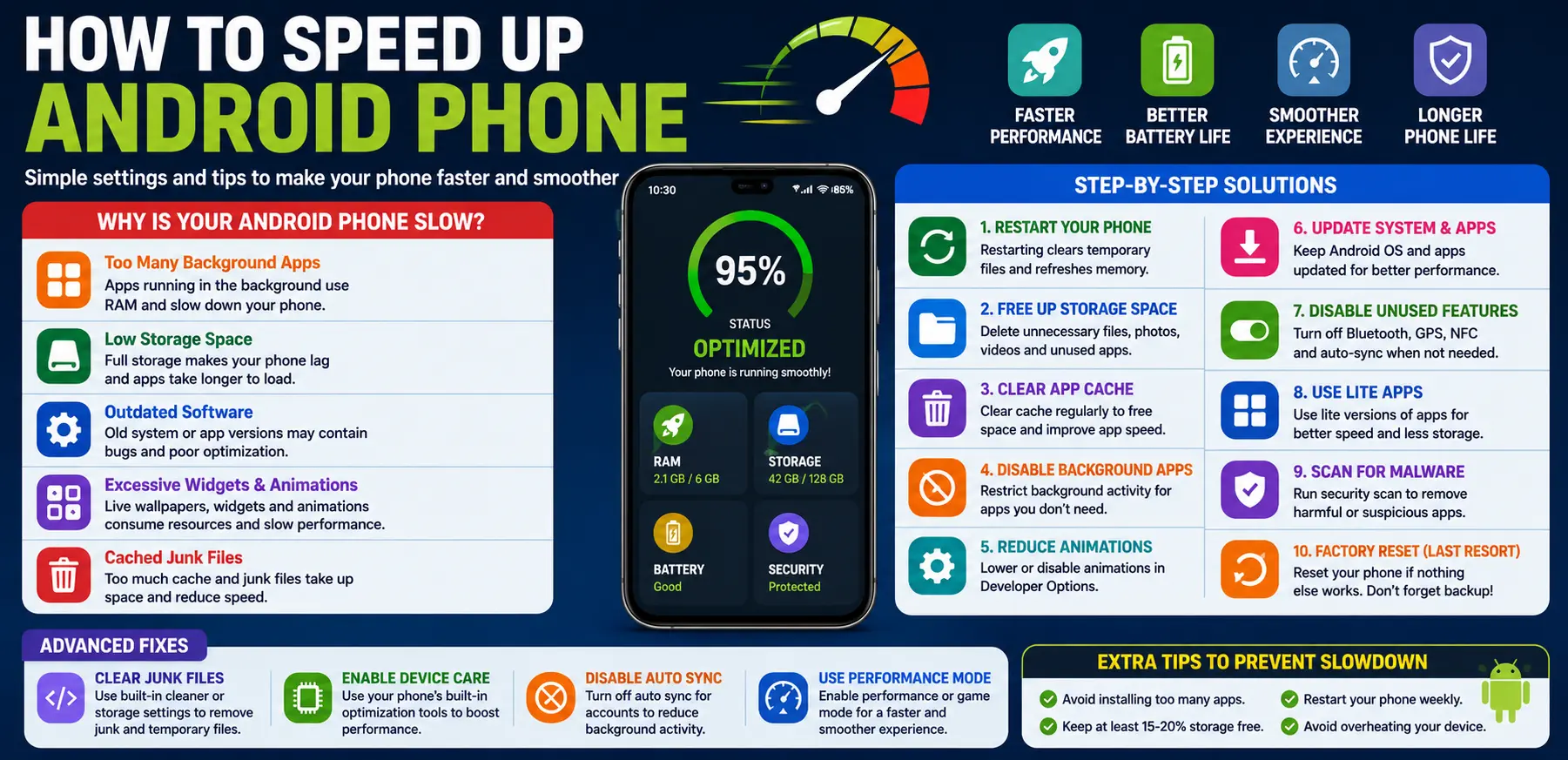
Main Causes of Slow Android Performance
1. Too Many Background Apps
Many apps continue running in the background even when you are not using them. These apps consume RAM, battery power, and processing resources.
Social media apps, cloud storage services, and messaging apps are common examples of apps that constantly run in the background.
2. Low Storage Space
Android phones need free storage space to operate efficiently. When storage becomes almost full, the system struggles to manage temporary files and app data.
Low storage often causes:
- App crashes
- Slow loading times
- Freezing
- Lagging
3. Outdated Software
Old Android versions and outdated apps may contain bugs or poor optimization that reduce overall performance.
Manufacturers release updates to improve speed, battery management, and security.
4. Excessive Widgets and Animations
Widgets, live wallpapers, and heavy animations use system resources continuously.
Too many visual effects can slow older or mid-range devices.
5. Cached Junk Files
Apps store temporary files called cache to load content faster. Over time, these files may become corrupted or unnecessarily large.
Too much cached data can affect storage and system speed.
Step-by-Step Solutions
Restart Your Android Phone
One of the easiest ways to improve performance is restarting the phone.
Restarting:
- Clears temporary system processes
- Refreshes memory usage
- Stops frozen background tasks
A quick restart every few days can noticeably improve speed.
Free Up Storage Space
Delete Unnecessary Files
Remove:
- Duplicate photos
- Old videos
- Downloads
- Large unused files
Keeping at least 15–20% of storage free helps Android run smoothly.
Uninstall Unused Apps
Many users keep apps they no longer use. Removing unnecessary apps reduces background activity and frees storage space.
Focus on deleting:
- Unused games
- Editing apps
- Shopping apps
- Temporary utility apps
Clear App Cache
Clearing cache can improve app performance and free storage space.
Steps:
- Open Settings
- Go to Storage or Apps
- Select an app
- Tap Clear Cache
Avoid clearing important app data unless necessary.
Disable Unnecessary Background Apps
Restrict Background Activity
Some apps constantly refresh content even when closed.
To reduce background activity:
- Open Settings
- Tap Apps
- Select an app
- Go to Battery
- Choose Restricted
This helps improve both performance and battery life.
Reduce Animations
Animations make Android look smoother but may slow weaker devices.
Enable Developer Options
Steps:
- Open Settings
- Tap About Phone
- Tap Build Number several times
- Open Developer Options
Reduce:
- Window animation scale
- Transition animation scale
- Animator duration scale
This makes the phone feel faster and more responsive.
Update Android and Apps
Install System Updates
Manufacturers release updates that improve:
- Performance
- Battery optimization
- Security
- Stability
Always install trusted updates when available.
Update Apps Regularly
Outdated apps may consume more resources or cause lag.
Enable automatic app updates through the Google Play Store.
Disable Unused Features
Several phone features consume resources even when not needed.
Turn off:
- Bluetooth
- GPS
- NFC
- Nearby sharing
- Auto-sync for unused accounts
This reduces system load and improves efficiency.
Use Lite Versions of Apps
Some apps offer lightweight versions designed for better performance on slower devices.
Examples:
- Facebook Lite
- Messenger Lite
- YouTube Go alternatives
Lite apps use less RAM and storage.
Advanced Fixes
Remove Widgets and Live Wallpapers
Widgets constantly refresh information in the background.
Live wallpapers also use processing power and battery.
Using:
- Simple wallpapers
- Minimal widgets
can improve phone speed noticeably.
Scan for Malware or Harmful Apps
Malicious or poorly optimized apps may secretly consume resources.
Use trusted antivirus or security apps occasionally to scan your device.
Avoid downloading apps from unknown websites.
Disable Auto Sync
Automatic syncing constantly refreshes emails, cloud storage, and social media data.
To disable:
- Open Settings
- Go to Accounts
- Turn off sync for unnecessary accounts
This reduces background activity.
Use Device Care or Optimization Tools
Many Android brands include built-in optimization features.
Examples:
- Samsung Device Care
- Xiaomi Security App
- OnePlus System Optimization
These tools help:
- Clear memory
- Remove junk files
- Optimize battery usage
Factory Reset as a Last Resort
If your Android phone remains extremely slow after trying all solutions, a factory reset may help.
Before resetting:
- Backup photos and files
- Save passwords
- Sync contacts
A clean reset removes hidden software issues and unnecessary clutter.
Tips to Prevent Android Slowdowns
Avoid Installing Too Many Apps
Every app uses some amount of memory, storage, and battery.
Install only apps you truly need.
Keep Storage Organized
Regularly clean:
- Downloads folder
- Screenshots
- Duplicate files
- Old media
Good storage management improves long-term performance.
Restart Your Phone Weekly
Restarting regularly helps refresh system processes and improve stability.
Avoid Cheap Cleaning Apps
Many third-party “phone booster” apps actually slow devices down with ads and unnecessary background activity.
Android already includes built-in optimization features.
Protect Your Phone From Heat
Overheating reduces processor performance and affects battery health.
Avoid:
- Gaming while charging
- Leaving the phone in direct sunlight
- Using poor-quality chargers
FAQs
Why is my Android phone so slow suddenly?
Sudden slowdowns are usually caused by low storage, background apps, outdated software, overheating, or system bugs.
Does clearing cache improve Android speed?
Yes. Clearing cache removes temporary files that may slow apps or consume storage unnecessarily.
Is factory reset safe for Android phones?
Yes, but it deletes all personal data. Always backup important files before performing a reset.
How much free storage should I keep on my phone?
Keeping at least 15–20% of storage free helps Android devices perform better.
Do live wallpapers slow down Android phones?
Yes. Live wallpapers use extra battery and processing power, especially on older devices.
Conclusion
A slow Android phone can be frustrating, but most performance problems can be fixed without replacing the device. Simple steps like freeing storage, reducing background activity, clearing cache, and updating software can make a major difference.
Understanding how to speed up Android phone performance helps you get more life out of your device while improving daily usage. Small maintenance habits done regularly can keep your phone running smoothly for years.
With the right settings and smart usage habits, even older Android phones can feel faster, cleaner, and more responsive again.
- AI Powered Cyber Defense How Artificial Intelligence Strengthens Modern Cybersecurity
- Machine Learning in Cybersecurity How Intelligent Systems Help Detect and Prevent Cyber Threats
- AI in Cybersecurity How Artificial Intelligence Is Transforming Digital Security
- AI Threat Detection How Artificial Intelligence Helps Stop Cyber Threats Before They Cause Damage
- Artificial Intelligence Security Solutions A Practical Guide to Smarter Cyber Protection
