
Introduction
A slow or unstable internet connection can quickly become frustrating. Videos buffer constantly, online games lag, websites load slowly, and video calls freeze at the worst moments. Whether you work from home, attend online classes, stream movies, or browse social media, a poor WiFi connection affects daily life more than most people realize.
FOR MORE SOLUTIONS VISIT
Many users assume internet problems are always caused by their service provider, but that is not always true. Weak router placement, device overload, outdated equipment, and incorrect settings are some of the most common reasons behind slow or unstable connections.
The good news is that many internet and WiFi issues can be fixed with simple adjustments. Understanding the real causes and applying the right troubleshooting steps can improve speed, stability, and overall performance without spending a lot of money.
This guide covers practical internet & WiFi troubleshooting tips that are beginner-friendly and actually useful.
Main Causes of Internet and WiFi Problems
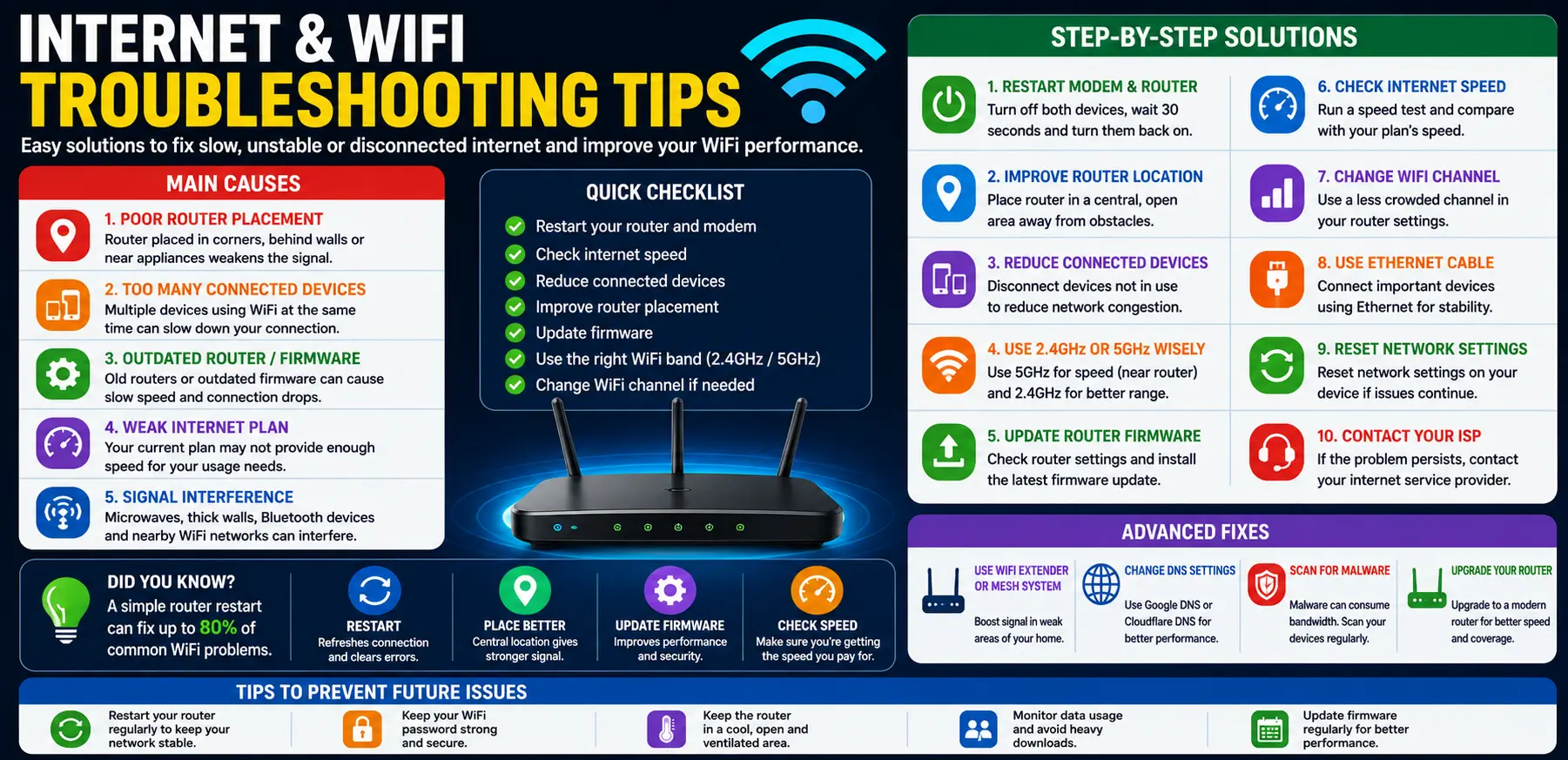
1. Poor Router Placement
Router location plays a major role in WiFi performance. If the router is hidden behind walls, placed near metal objects, or kept inside cabinets, the signal may become weak.
WiFi signals work best in open areas with fewer obstacles.
2. Too Many Connected Devices
Modern homes often have multiple connected devices:
- Smartphones
- Smart TVs
- Laptops
- Gaming consoles
- Security cameras
When too many devices use the network at the same time, internet speed may slow down for everyone.
3. Outdated Routers or Firmware
Older routers may struggle to handle modern internet speeds and multiple devices efficiently.
Outdated firmware can also cause:
- Connection drops
- Slow performance
- Security problems
4. Weak Internet Plan
Sometimes the internet package itself may not provide enough speed for your household usage.
Streaming 4K videos, gaming, and video conferencing all require stable and fast internet.
5. Signal Interference
WiFi signals can be disrupted by:
- Thick walls
- Microwaves
- Bluetooth devices
- Neighboring WiFi networks
Interference reduces signal strength and connection quality.
Step-by-Step Solutions
Restart Your Router and Modem
One of the simplest and most effective troubleshooting methods is restarting your networking equipment.
Steps:
- Turn off the router and modem
- Wait 30 seconds
- Turn the modem back on
- Wait until all lights stabilize
- Turn on the router
This refreshes the connection and clears temporary network problems.
Move Your Router to a Better Location
Router placement greatly affects signal strength.
Best Router Placement Tips:
- Place it in a central area
- Keep it elevated
- Avoid placing it near walls or metal objects
- Keep it away from microwaves and TVs
Open spaces usually provide better coverage.
Reduce Connected Devices
Disconnect devices that are not actively being used.
Examples:
- Old phones
- Unused smart devices
- Idle gaming consoles
Too many active devices can overload the network.
Switch Between 2.4GHz and 5GHz
Most modern routers support two WiFi bands.
2.4GHz
- Better range
- Slower speed
- Works better through walls
5GHz
- Faster speed
- Shorter range
- Better for gaming and streaming
Choose the band based on your needs and distance from the router.
Update Router Firmware
Router manufacturers release firmware updates to improve:
- Stability
- Security
- Performance
Check your router settings page regularly for updates.
Check Internet Speed
Run a speed test using trusted tools.
Compare:
- Download speed
- Upload speed
- Ping
If speeds are consistently much lower than your internet plan, contact your internet provider.
Use Ethernet for Important Devices
WiFi is convenient, but wired connections are usually more stable.
Use Ethernet cables for:
- Gaming PCs
- Smart TVs
- Work computers
This reduces WiFi congestion and improves reliability.
Change WiFi Channel
In crowded areas, nearby WiFi networks may use the same channel.
Changing channels can improve speed and reduce interference.
Most routers allow channel selection through the admin settings page.
Advanced Fixes
Reset Network Settings
Sometimes network settings become corrupted.
On Smartphones:
- Open Settings
- Go to System or General Management
- Select Reset
- Choose Reset Network Settings
This may fix connection problems without affecting personal files.
Upgrade Your Router
Older routers may not support modern WiFi standards efficiently.
Upgrading to newer WiFi 5 or WiFi 6 routers can improve:
- Speed
- Device handling
- Coverage
- Stability
This is especially helpful for large households.
Use a WiFi Extender or Mesh System
Large homes often have weak signal areas.
WiFi Extenders
Boost signal coverage in weak areas.
Mesh Systems
Provide stronger and more consistent coverage across the entire house.
Mesh systems work better for multi-floor homes.
Scan for Malware
Malware or infected devices can secretly consume internet bandwidth.
Use trusted antivirus software to scan:
- PCs
- Smartphones
- Tablets
Suspicious background activity may slow the network.
Change DNS Settings
Using faster DNS services may improve browsing speed.
Popular DNS providers include:
- Google DNS
- Cloudflare DNS
Changing DNS settings can improve website loading times.
Tips to Prevent Future Internet Problems
Restart Your Router Regularly
Restarting the router once every few weeks helps refresh network performance.
It clears temporary bugs and connection issues.
Keep Firmware Updated
Regular updates improve security and help prevent performance problems.
Enable automatic updates if your router supports them.
Secure Your WiFi Network
Use:
- Strong passwords
- WPA2 or WPA3 encryption
An unsecured network may allow unknown users to consume bandwidth.
Avoid Router Overheating
Routers can slow down when overheated.
Keep the router:
- In a cool area
- Well ventilated
- Away from direct sunlight
Monitor Data Usage
Heavy downloads and streaming may slow the network for others.
Monitor which devices consume the most bandwidth.
FAQs
Why is my WiFi connected but internet is not working?
This may happen because of modem issues, internet service outages, DNS problems, or router errors.
Does restarting the router improve internet speed?
Yes. Restarting refreshes the network connection and may solve temporary speed or stability problems.
What is the difference between 2.4GHz and 5GHz WiFi?
2.4GHz offers longer range but slower speed, while 5GHz provides faster speed with shorter coverage distance.
How often should I restart my router?
Restarting the router every few weeks is generally enough unless you experience frequent issues.
Can too many devices slow down WiFi?
Yes. Multiple active devices sharing bandwidth can reduce speed and increase network congestion.
Conclusion
Internet and WiFi problems can disrupt work, entertainment, and communication, but most issues are easier to fix than many people think. Simple actions like restarting the router, improving router placement, reducing connected devices, and updating firmware can greatly improve connection quality.
Advanced solutions such as upgrading routers, using mesh systems, and changing DNS settings can provide even better results for larger homes or heavy internet users.
Following these internet & WiFi troubleshooting tips can help create a faster, more stable, and more reliable internet experience for everyday use.
- AI Powered Cyber Defense How Artificial Intelligence Strengthens Modern Cybersecurity
- Machine Learning in Cybersecurity How Intelligent Systems Help Detect and Prevent Cyber Threats
- AI in Cybersecurity How Artificial Intelligence Is Transforming Digital Security
- AI Threat Detection How Artificial Intelligence Helps Stop Cyber Threats Before They Cause Damage
- Artificial Intelligence Security Solutions A Practical Guide to Smarter Cyber Protection
